
In this article:
With the Jane integration, you can automatically import your patients and their appointment information into Cyberimpact.
You’ll be able to segment your contacts, automate your marketing, and send relevant messages, all while respecting patient consent.
What is Jane?
Jane is a practice management platform used by health and wellness professionals to manage appointments, clients, billing, and patient records, all in one place.
Cyberimpact’s integration lets you synchronize your Jane patients directly into your contact lists so you can keep them informed, engaged, and cared for between visits. By connecting Jane and Cyberimpact, you can automate follow-ups, send personalized communications, and deliver the right message at the right time.
Video tutorial
Here’s how to set up the integration in just a few minutes.
For the details of each step, see the Step-by-step setup section below.
Before you start
Here’s what you’ll need to know before connecting Jane to Cyberimpact:
On the Jane side
- The integration is available with any paid Jane plan.
- You must be the Account Owner in Jane to authorize the connection.
- Make sure you have your clinic URL on hand. For example: https://yourclinic.janeapp.com
On the Cyberimpact side
- You must be an Administrator of your Cyberimpact account.
- No minimum plan is required.
- The plan you need depends on the number of Jane fields you decide to sync with Cyberimpact custom fields.
Learn more >
| Plan | Max Custom fields |
|---|---|
| Free | 0 |
| Basic | 10 |
| Plus | 20 |
| Pro | 40 |
If you exceed your custom field limit, a message will appear during setup so you can adjust or upgrade your plan.
How is my data secured?
Your data is transferred securely through Jane’s official API using OAuth2.
No API keys, tokens, or sensitive identifiers are ever exposed.
How the integration works
Here’s a step-by-step look at how the integration works:
- Connection – From your Cyberimpact account, connect your Jane account to activate the integration and allow Cyberimpact to access the data required for synchronization.
- Configuration – Once connected, you'll be prompted to choose which patient fields to import, how you want your contacts to be organized in Cyberimpact, and the consent mode that will determine which patients are eligible for import.
- Initial synchronization – After confirming your configuration, Cyberimpact performs a full import of all eligible patients (18+ with a date of birth, based on the eligibility criteria and consent mode configured, see Patient eligibility below). It creates the required custom fields and groups, adds the patients and their information to your Cyberimpact account, and organizes your contacts automatically. The process may take a few minutes depending on your clinic size.
- Ongoing updates – After the initial import, your patient list remains up to date with automatic synchronizations two times per day (12:00PM and 10:00PM), based on your account’s time zone. A minimum of 30 minutes must have elapsed since the last sync started before a new one can begin.
Once the integration is connected, Jane and Cyberimpact stay in sync automatically. No manual work required. You can update your configuration at any time if your needs change.
Patient eligibility
To be eligible for synchronization in Cyberimpact, a patient must:
-
Have a valid email address
-
Be 18 years or older
-
Have a valid birthdate in Jane
-
Not be marked as “Do not email”
-
Have an "Active" or "Discharged" status (deceased and archived patients are excluded).
Whether marketing consent is also required depends on the consent mode selected for your integration:
-
Import all patients: marketing consent in Jane is not required. All patients meeting the criteria above are imported.
-
Respect Jane marketing consent: the patient must also have opted in to marketing emails in Jane.
See Consent management below for details on the two modes.
Information you can import
When connecting Jane, you can choose which information to import into Cyberimpact.
Selecting the right fields helps you personalize your messages, target the right audience, build relevant automations and create more meaningful campaigns, all kept up to date automatically from your Jane data.
Basic vs. custom fields
Cyberimpact uses two types of fields to store information imported from Jane:
-
Basic fields – Built-in fields available in all Cyberimpact accounts (e.g., email, first name, last name).
-
Custom fields – Additional fields created by the integration to store more detailed patient or appointment data.
All custom fields start with “Jane App – …” to make them easy to recognize.
Depending on your selections, the integration can create up to 36 custom fields, plus 7 basic fields, for a total of 43 different pieces of information that can be synchronized.
Available data
Below is a full overview of the information you can import, organized by category.
Field overview
| Patient data (up to 7 basic fields) |
Additional patient data (up to 6 custom fields) |
Last appointment fields (up to 15 custom fields) |
Next appointment fields (up to 15 custom fields) |
|---|---|---|---|
| Email (mandatory) | Prefix (e.g., Dr, Ms, Mr, Mx). | Booked at (date only) | Booked at (date only) |
| First name | City | Treatment name | Treatment name |
| Last name | Province/State | Treatment description | Treatment description |
| Gender (mapped to Jane’s Sex field) | Patient number | Treatment price | Treatment price |
| Birthdate | Patient since (date) | Treatment discipline name | Treatment discipline name |
| Postal code/Zip
|
Mobile phone number | Appointment date | Appointment date |
| Country | — | Start time (HH:MM) | Start time (HH:MM) |
| — | — | End time (HH:MM) | End time (HH:MM) |
| — | — | Clinic name | Clinic name |
| — | — | Clinic address* | Clinic address* |
| — | — | Clinic phone number | Clinic phone number |
| — | — | Clinic email | Clinic email |
| — | — | Staff member’s name (full name) | Staff member’s name (full name) |
| — | — | Appointment status (arrived, no_show, cancelled, completed) | Appointment status (upcoming, cancelled) |
| — | — | Cancelled reason | Cancelled reason |
*Clinic address: This field is automatically filled with the clinic’s full address (street address, street address 2, city, province, and postal code) based on the location associated with the appointment.
About appointment fields (“Last appointment” / “Next appointment”)
The integration uses a simple and consistent logic to populate the Last appointment and Next appointment fields in Cyberimpact.
Eligibility
-
Only individual appointments are supported.
-
Group, and class appointments are not available, as these appointment types are not provided through the Jane API.
How appointments are selected
-
Last appointment → the most recent past appointment.
-
Next appointment → the nearest upcoming appointment that has not been cancelled. If only cancelled appointments exist, the soonest one is used.
Possible appointment statuses
-
Arrived
-
No_show
-
Cancelled
-
Completed (past appointment not marked as arrived, no-show or cancelled)
-
Upcoming (appointment scheduled in the future)
Why these fields matter
Appointment fields always reflect the most up-to-date information, focusing on the closest past and upcoming visits. This gives you meaningful context to power timely follow-ups, reminders, reactivation campaigns, and other personalized messages, without overwhelming your account with unnecessary historical data.
What happens if the date of the appointment in the “Next Appointment” fields has passed and no other appointment is scheduled?
If the date of the appointment in the Next Appointment fields has passed and no new appointment is scheduled, that appointment is automatically moved to the Last Appointments fields. The Next Appointment fields are then cleared until a new appointment is created and synchronized.
Default group and segmentation options
When you connect Jane, Cyberimpact automatically creates a default group:
Jane – All Patients
You can then enable optional segmentation settings to organize your patients more precisely. Cyberimpact can segment your contacts by:
-
Discipline (e.g., Physiotherapy, Massage Therapy)
-
Treatment (e.g., Initial Assessment, Post-Op Follow-up)
-
Clinic location (for multi-location practices)
-
Staff member (practitioner’s name)
When a segmentation option is enabled, Cyberimpact automatically creates the corresponding groups and keeps them updated. No manual work needed.
How groups are named
All groups created by the integration follow a consistent naming format so they’re easy to identify in your Cyberimpact account. Each segmentation option uses its own naming pattern:
-
Clinic locations → Location – Clinic Name
Example: Location – Downtown Clinic -
Staff members → Staff – Full Name
Example: Staff – Tommy Tremblay -
Disciplines → Discipline – Discipline Name
Example: Discipline – Physiotherapy -
Treatments → Tx – Discipline Name – Treatment Name
Example: Tx – Physiotherapy – Initial Assessment
This consistent structure allows you to quickly recognize where each group comes from and how your contacts are organized.
How patients are added to groups
Patients are added to each group based on all their appointments in Jane. For example:
-
A patient with an appointment in a given discipline is added to that discipline's group.
-
A patient treated by a specific staff member is added to that practitioner's group.
-
A patient booked for a specific treatment is added to that treatment's group.
Turning segmentation off
If you disable a segmentation option later:
-
Cyberimpact will stop updating the groups linked to that option.
-
The corresponding groups remain in Cyberimpact and will be unlocked. You may choose to delete them manually if they are no longer needed.
Consent management
When you connect Jane to Cyberimpact, you decide how your patients' marketing consent is handled during the import. This lets you stay aligned with the consent practices you already follow in Jane, while giving you the flexibility to import your full patient list if you'd rather manage consent afterward, directly in Cyberimpact.
Keep in mind that Cyberimpact reads the consent status recorded in Jane; it doesn't collect or edit it there. Your clinic remains responsible for keeping that consent accurate and up to date, and for following the consent legislation that applies to you.
When setting up the integration, you choose how Jane's marketing consent is interpreted, at step 3 of the configuration. Two import modes are available.
"Respect Jane marketing consent" mode
Use this mode if you want Cyberimpact to import only patients who have actively opted in to marketing in Jane.
- Only patients with active marketing consent in Jane are imported.
- These contacts are assigned express consent (source: "API – Express consent"). No consent date is recorded (because this data is not available in Jane); the consent proof reads "Consent status provided by Jane (API) at sync time."
- If a patient withdraws marketing consent in Jane, they are removed from Cyberimpact at the next synchronization.
- If they give consent again in Jane, they are automatically re-added at the next sync, unless they had unsubscribed directly in Cyberimpact (see below).
"Import all patients" mode
Use this mode if you want all your eligible patients imported regardless of their marketing consent status in Jane, for example if you plan to request consent directly through Cyberimpact after the import.
- All patients meeting the general eligibility criteria are imported, whether or not they have active marketing consent in Jane.
- These contacts are assigned implied consent (source: "API – Active client"), valid for 24 months. The consent date used is the most recent of: the end date of their last appointment, the booking date of their next appointment, or their patient creation date (Patient since field) in Jane.
- Implied consent needs a relevant appointment change to be refreshed and keep its 24-month validity. If no such change occurs, the consent eventually expires, but the contact is not automatically removed from Cyberimpact or from your groups. It's your clinic's responsibility to review expired consents and decide whether to update or remove the contact.
- Withdrawing marketing consent in Jane does not remove the contact in this mode. Only becoming ineligible (for example, marked "Do not email") does.
- A stronger consent already recorded in Cyberimpact (for example, express consent obtained through a consent link) is never downgraded by this mode.
- Since marketing consent in Jane isn't required in this mode, it's your clinic's responsibility to make sure importing these patients complies with the consent legislation that applies to you.
In both modes
- A patient marked "Do not email," deceased, or archived in Jane is always excluded, and removed from Cyberimpact if already present.
- A contact who unsubscribed directly in Cyberimpact, or who triggered a hard bounce (detected as an incorrect address after a mailing), is never re-added, even if their Jane profile still shows active consent.
How consent works between Jane and Cyberimpact
The synchronization works in one direction only, from Jane to Cyberimpact. Jane remains the source of truth for the marketing consent your clinic collects from patients: Cyberimpact reads that status but never writes back to it.
If a contact unsubscribes from one of your Cyberimpact mailings, this has no effect on their consent status in Jane. Conversely, Cyberimpact always respects an unsubscribe recorded in Cyberimpact, even if the Jane profile still shows the patient as opted in.
Turning implied consent into express consent
If you use "Import all patients" mode, your implied consent contacts are a good audience to convert to express consent, both to improve your sender reputation and to reduce your reliance on the 24-month implied consent window. Cyberimpact gives you a few tools for this:
- Consent blocks: add a consent confirmation link to any newsletter or campaign template. Contacts with implied consent see the block and can confirm their consent with one click; contacts who already have express consent won't see it. Learn more about consent blocks.
- Consent campaigns: ready-to-send email templates, available in French and English, that you send manually, once, to invite your implied consent contacts to confirm their express consent. Learn how to create a consent template
- Express consent campaign (automated scenario): a ready-to-activate marketing automation scenario that automatically reaches out to a contact 30 days before their implied consent expires. It sends up to four follow-up emails, one week apart, checking the contact's consent type between each one and stopping as soon as they confirm express consent. If the contact hasn't confirmed by the last check, they receive a final email warning that Cyberimpact will soon no longer be able to reach them; if they have confirmed, they receive a closing email instead. Learn how to build a marketing automation scenario
Step-by-step setup
Step 1: Activate the integration and connect your Jane account
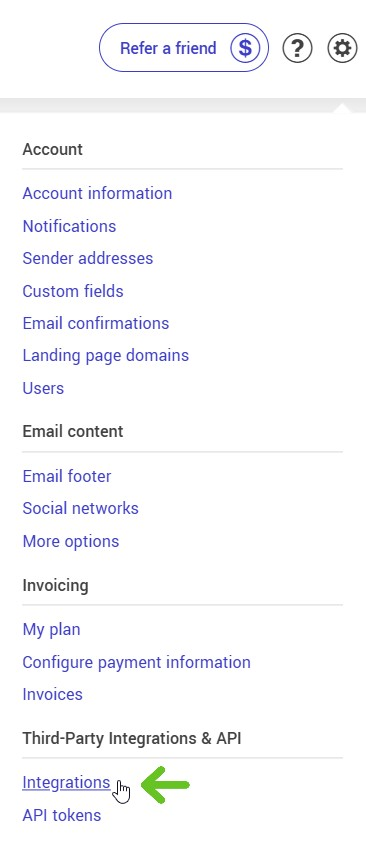
- In Cyberimpact, open the Settings and configurations menu.
.png)
- Under Third-Party Integrations & API, select Integrations.
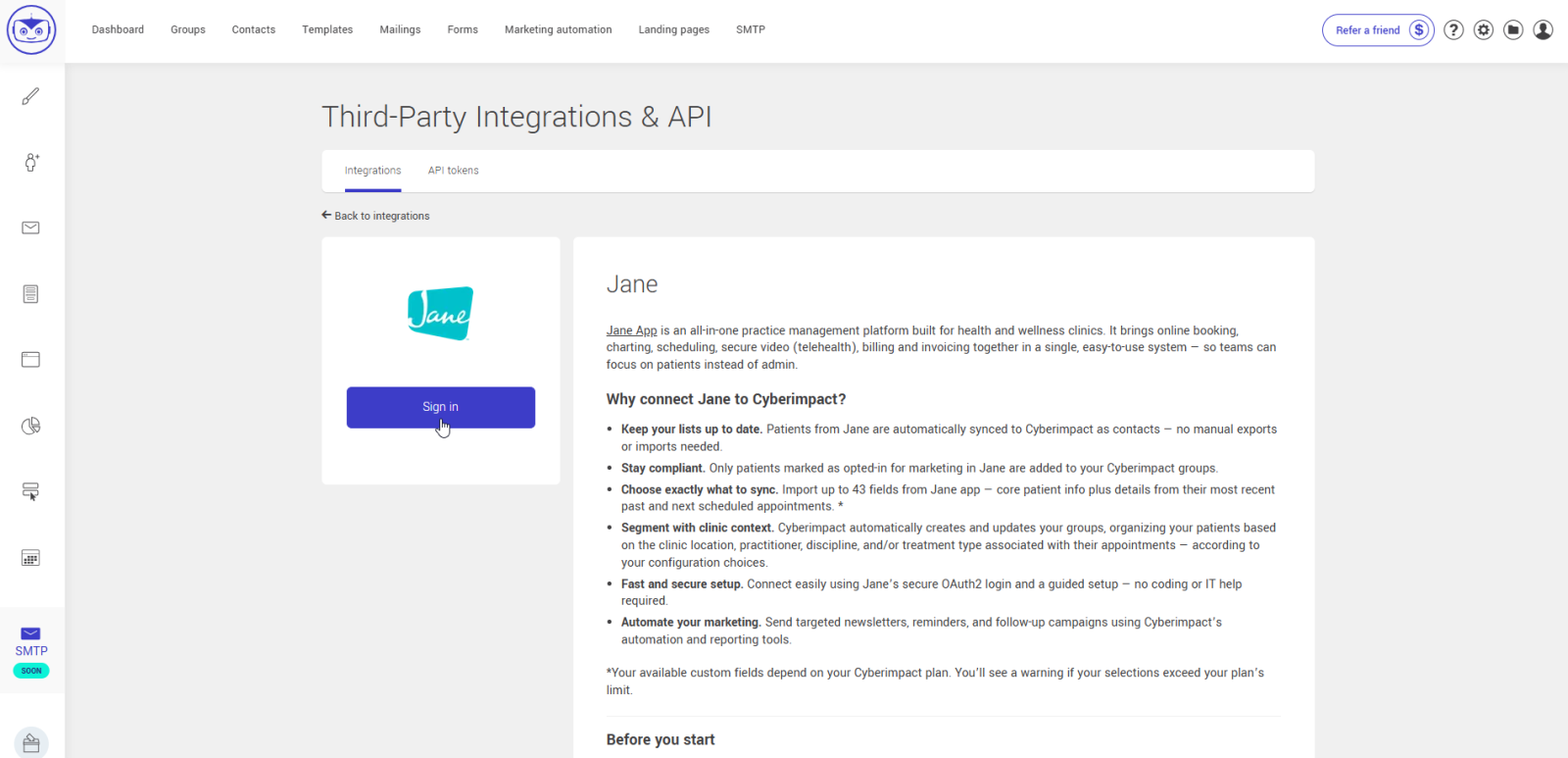
- Find the Jane card and click Connect.
- In the Jane page, click Sign in under the Jane logo.
- Enter your clinic’s Jane URL (for example, https://yourclinic.janeapp.com) and confirm.
- Log in to Jane to authorize the connection.
.png)
- Once the connection is authorized, a configuration popup will appear in Cyberimpact.
- You’ll need to complete the setup before launching your first synchronization, but you can also return later to finish or adjust your settings at any time.
Step 2: Set up the integration
The configuration process is divided into four simple steps:
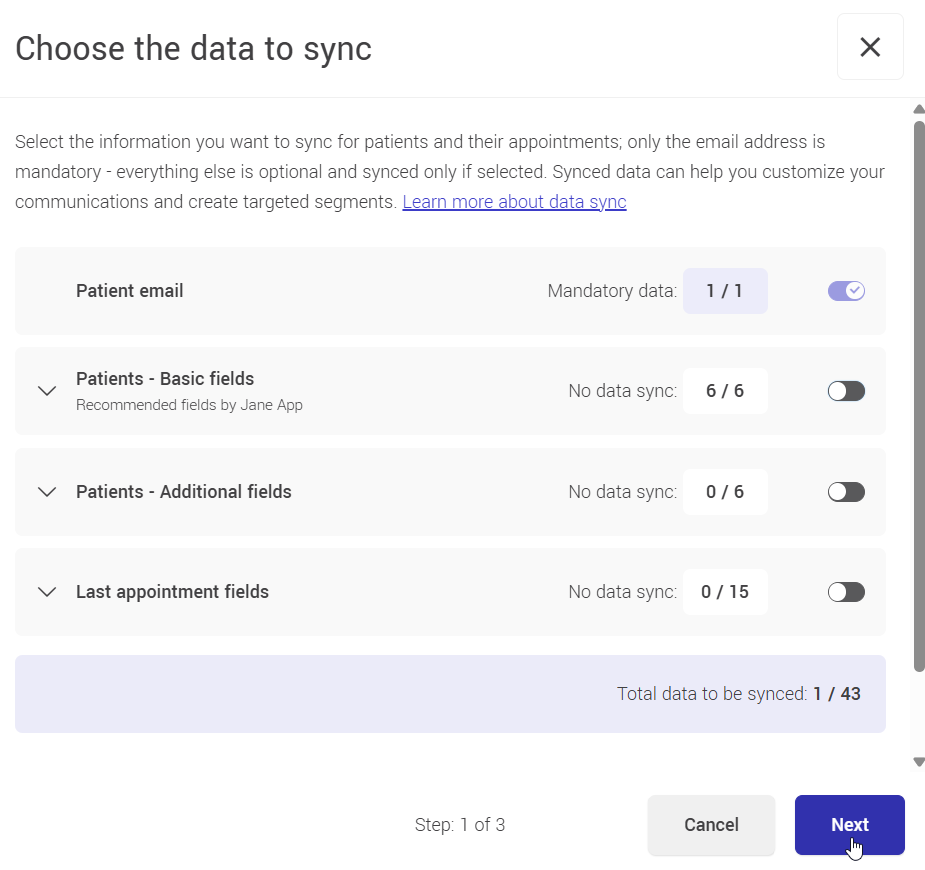
- Choose the data to sync.
Turn ON the switch for each data category you want to import. You can expand a category to select or deselect individual fields.
The email address is the only mandatory field, it’s required for all contacts.
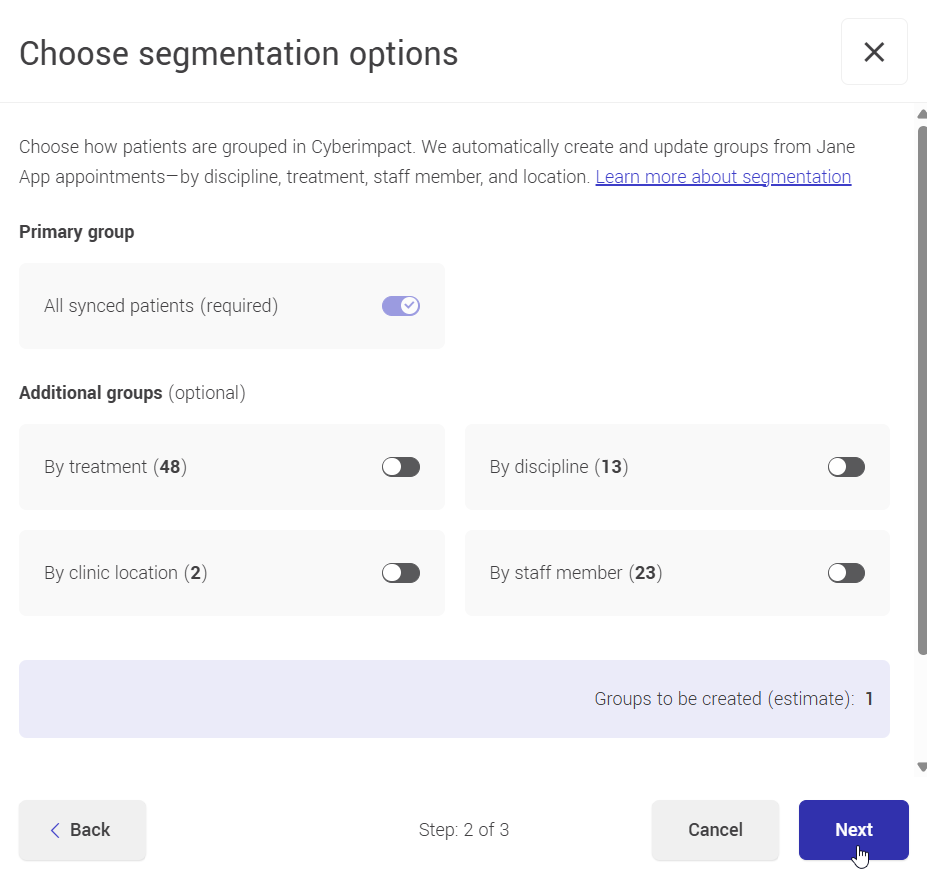
- Choose segmentation options.
Decide how you want to organize your contacts in Cyberimpact.
The “All synced patients” option is mandatory and automatically creates a group named Jane – All Patients, which includes every synced contact.
You can also enable other segmentation options by turning ON their switches. Each one will automatically create and keep its groups up to date based on your Jane data.
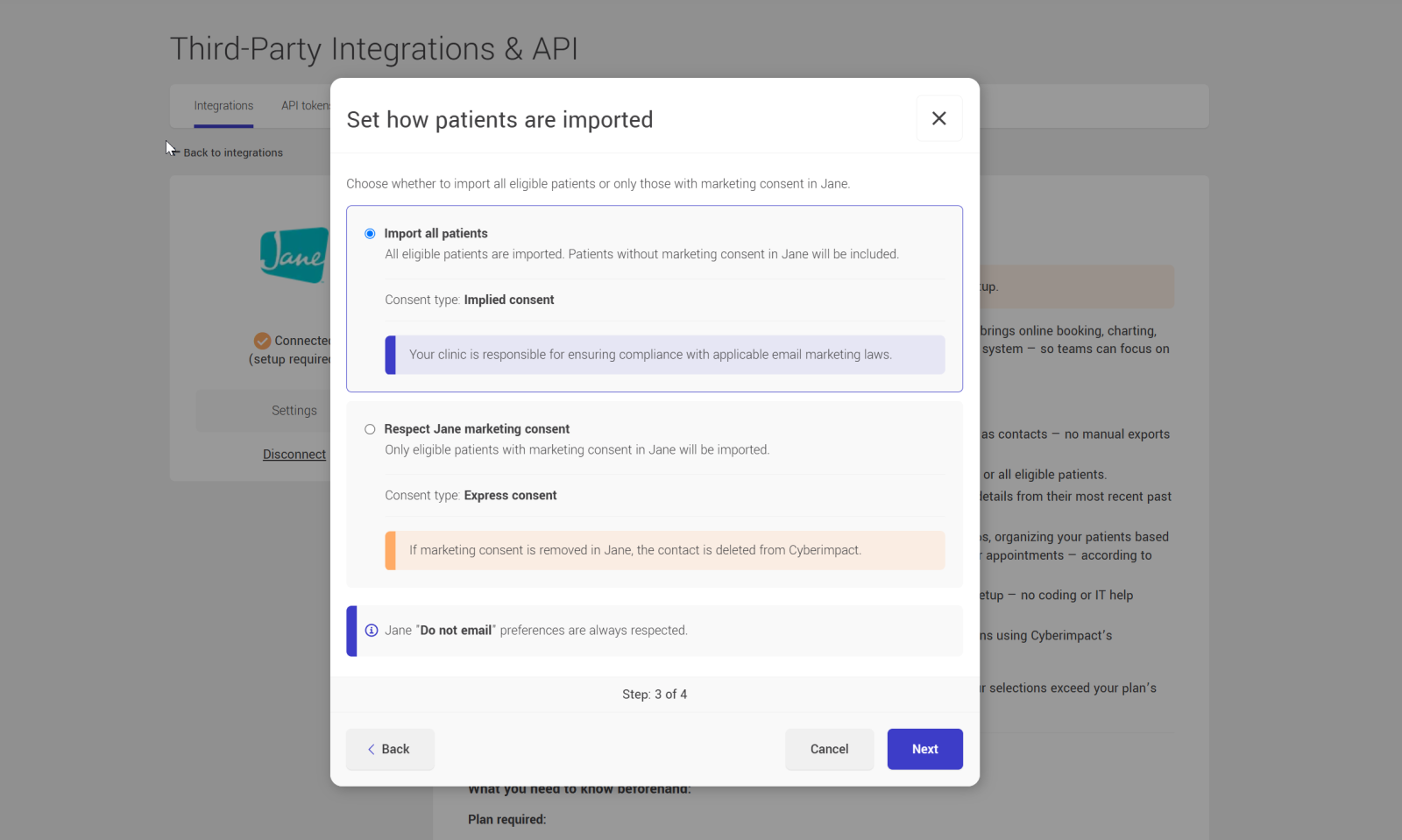
- Set how patients are imported.
Choose whether to import all eligible patients or only those with marketing consent in Jane. Jane "Do not email" preferences are always respected, regardless of the option chosen.
- Import all patients (selected by default for new connections). All eligible patients are imported. Patients without marketing consent in Jane will be included. Consent assigned: implied consent. Your clinic is responsible for ensuring compliance with applicable email marketing laws.
- Respect Jane marketing consent. Only eligible patients with marketing consent in Jane will be imported. Consent assigned: express consent. If marketing consent is removed in Jane, the contact is deleted from Cyberimpact.
- Import all patients (selected by default for new connections). All eligible patients are imported. Patients without marketing consent in Jane will be included. Consent assigned: implied consent. Your clinic is responsible for ensuring compliance with applicable email marketing laws.
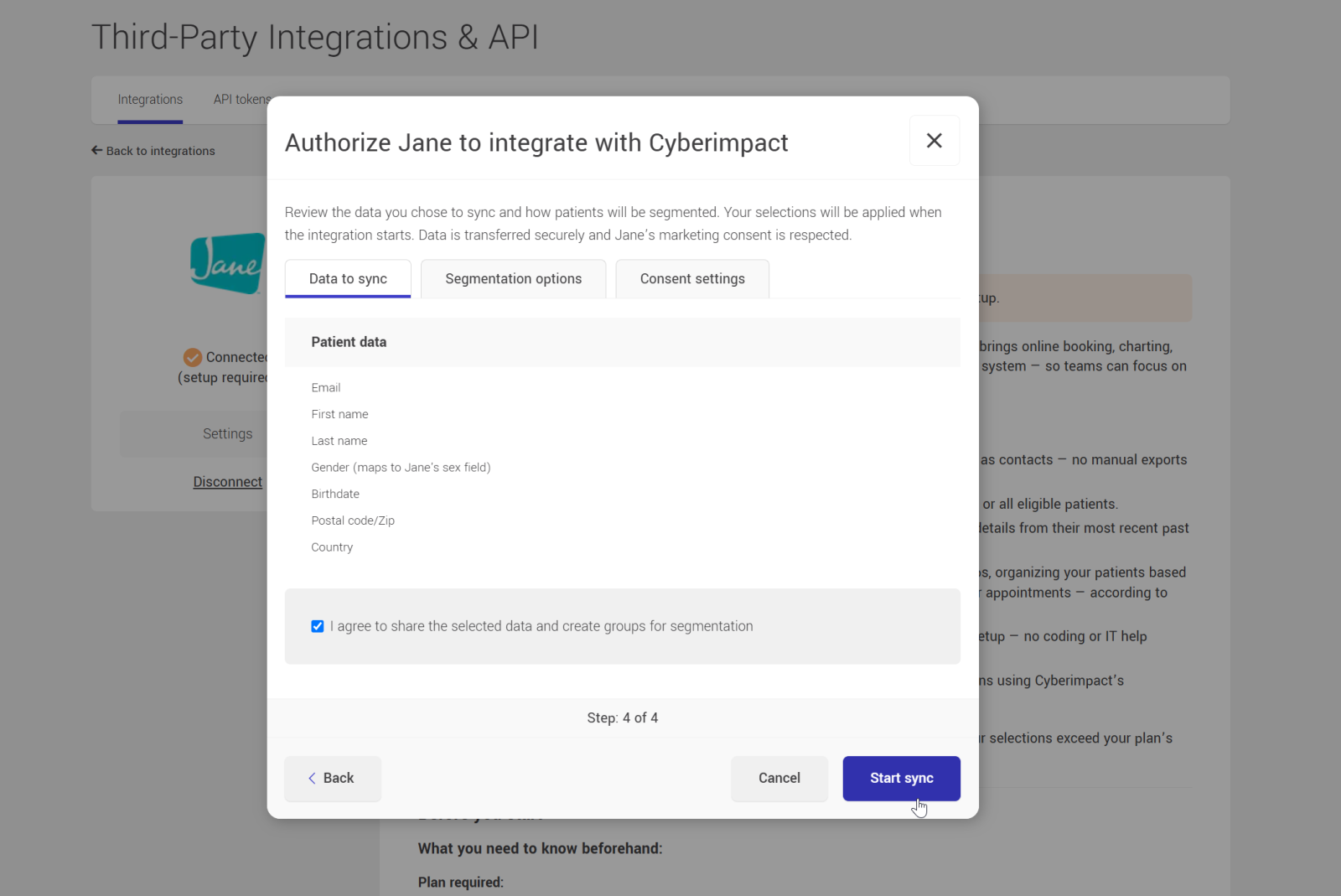
- Review, authorize and start the sync.
Before starting the synchronization, review your selections.- Check the consent box to confirm that you agree to the sharing of the selected data, the creation of the necessary groups for segmentation, and the import of patients according to the chosen consent mode.
- Then, click Start sync to launch your first synchronization.
- Cyberimpact will automatically create your groups and fields, import your patients, and keep your data up to date going forward.
- The process may take a few minutes, depending on the size of your clinic’s data.
- A confirmation popup will appear once the synchronization is complete.
- You can continue working in your account while the sync runs in the background.
If you don’t see the confirmation after a while, try refreshing the page or navigating to another section of your account, the popup should then appear automatically.
What's next?
Now that everything is synced, here’s what you can do.
Make the most of your synced data
Once your data is synchronized, you can start using it right away to elevate your marketing:
- Send personalized newsletters by discipline, treatment or location.
- Automate post-treatment follow-ups (e.g., “How are you feeling since your last session?”).
- Automate birthday emails
- Reactivate who haven't booked in a while. (e.g., “We miss you, book your next appointment!”).
- Promote new services to specific patient segments.
Suggested next steps in Cyberimpact
After connecting the integration, here’s what we recommend doing next:
- Authenticate your sending domain.
- Create your first email template and mailing targeting a Jane group.
- Build an automation (e.g., follow-up 2 weeks after last appointment).
- Use segmentation to send relevant content by clinic, discipline, or staff member.
- Add a form to your website to collect new patients.
- Create a landing page for your campaigns.
How to disconnect the Jane integration
If you no longer want Cyberimpact to sync with Jane, you can disconnect the integration at any time.
To disconnect
- In Cyberimpact, open the Settings and configurations menu.
- Under Third-Party Integrations & API, select Integrations.
- Find the Jane card and click Manage.
- On the Jane integration page, click Disconnect.
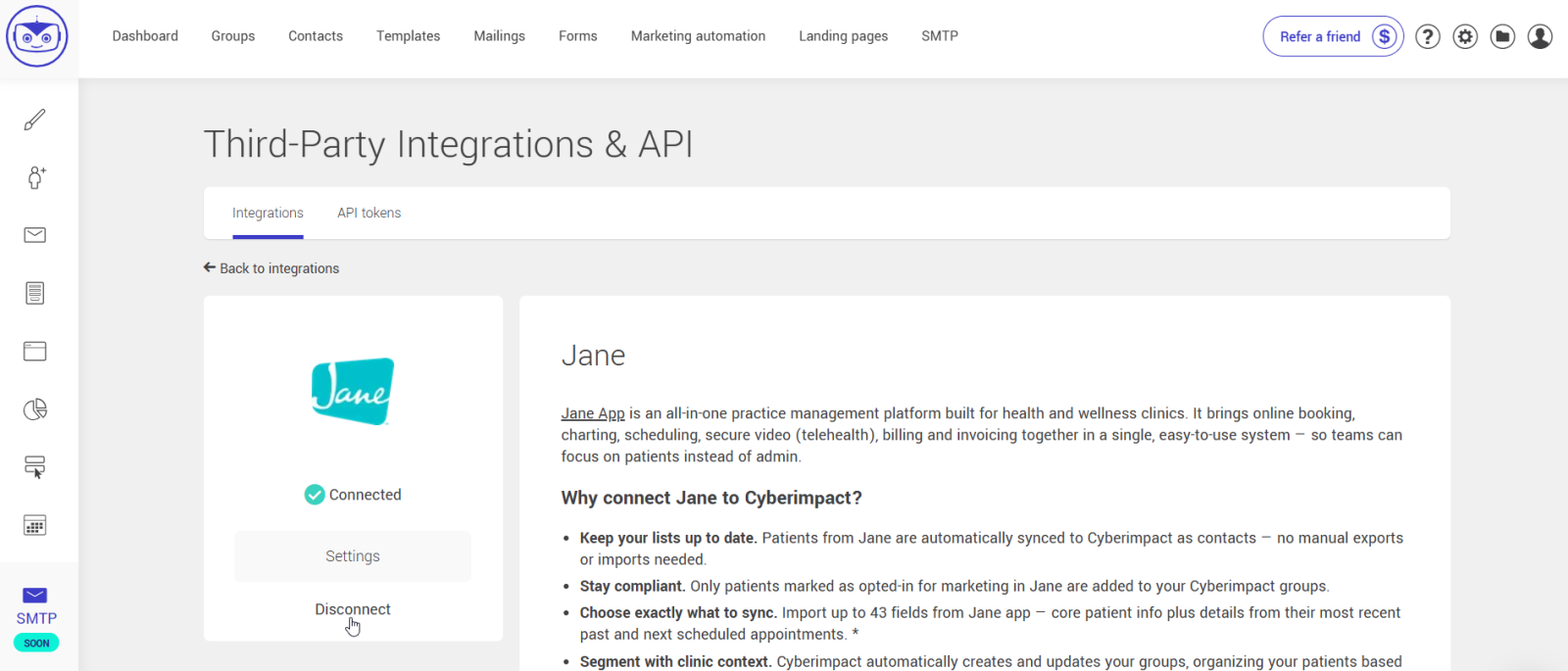
- Confirm your choice in the popup window.
The integration will stop synchronizing immediately.
What happens after disconnection
- Synchronization stops:
No new patient or appointment data will be imported until you reconnect. - Custom fields:
All “Jane – …” custom fields remain in your account with the data last synchronized. They stop updating automatically and are unlocked, so you can edit or delete them manually if needed. - Segmentation group:
Existing “Jane – …” groups remain in your account but stop updating. They are also unlocked, allowing you to use, rename, or delete them manually. - Reconnection:
You can reconnect anytime. When you do, Cyberimpact will perform a new full synchronization to refresh all fields and groups.
Frequently asked questions
- Why aren’t some patients syncing?
- What if two patients share the same email address?
- Why are some appointment fields empty?
- Can I manage multiple clinic locations?
- Why are patients under 18 not imported?
- How do I remove patients who were archived or deleted in Jane?
- What happens with deceased patients?
- What appointment statuses can appear in Cyberimpact?
- Can I change my Jane configuration later?
- Why can’t I uncheck some fields in Jane integration settings?
- What about minor dependencies? Why can I uncheck fields with minor dependencies?
- Why are some fields and groups locked in Cyberimpact?
- Why don’t some segmentation groups appear in Cyberimpact?
- If I rename staff, disciplines, treatments, or clinic locations in Jane, will Cyberimpact create new groups?
- What happens if I disconnect manually?
- My Jane connection expired. What should I do?
- Who should I contact if something doesn’t work?
Why aren’t some patients syncing?
Check these points:
- The patient is marked as "Do not email".
- They are under 18 years old.
- Their Jane record doesn’t have a valid email address.
- The patient’s date of birth is missing.
- The patient has a different status than "Active" or "Discharged".
- The contact previously unsubscribed in Cyberimpact, or their email address is in the incorrect address list (hard bounce). In both cases, the contact will not be re-added even if their Jane profile shows active consent.
- The patient didn't consent to marketing emails in Jane (this only applies if your integration is set to "Respect Jane marketing consent" mode).
What if two patients share the same email address?
Cyberimpact can only store one contact per unique email address.
If two patients in Jane share the same email (for example, family members), Cyberimpact keeps the most recently updated eligible patient record. If two records were updated at the same time, the most recently created one is used as a tie-breaker.
Why are some appointment fields empty?
Appointment fields may be empty if the patient has no past or upcoming appointment, or because Jane’s API only provides individual appointments. Group and class appointments aren't included.
Can I manage multiple clinic locations?
Yes, Cyberimpact fully supports Jane accounts with multiple clinic locations. Patients can be automatically segmented by clinic location based on the location of their appointments, so you can easily target communications for each clinic. Note that only one Jane account can be connected to a Cyberimpact account at a time. So all the clinic locations must be in the same Jane account.
Why are patients under 18 not imported?
As a precaution, the Jane integration currently excludes patients identified as being under 18, regardless of the country in which the clinic operates.
This is not because communications involving minors are universally prohibited. Rather, privacy, consent and communication requirements involving minors can vary significantly by country, province and state.
In Canada, for example, privacy obligations are shared between federal law (PIPEDA) and provincial legislation, some of which is health-specific, such as Quebec's Law 25, Ontario's PHIPA, or Alberta's Health Information Act. These laws don't all set the same consent requirements for minors, and some provinces address it more specifically than others.
In the United States, for example, a parent or legal guardian will generally have authority to act on behalf of a minor for healthcare privacy purposes under HIPAA. However, there are exceptions where the minor may control certain healthcare information, where another person may have legal authority, or where specific confidentiality requirements apply. State laws can also affect these requirements.
The current integration cannot reliably determine:
- who owns the email address associated with the patient's Jane record;
- whether the email belongs to the patient, a parent, legal guardian or another person;
- whether that person is legally authorized to receive communications on the minor's behalf;
- whether the appropriate consent or authorization has been obtained for the import and intended communications; or
- whether specific confidentiality restrictions apply to some or all of the patient's information.
Because these factors cannot currently be validated automatically, patients identified as being under 18 are excluded from the synchronization as a protective measure.
This is therefore a safeguard and limitation of the current Jane integration, rather than a requirement under any specific privacy law that patients under 18 cannot be imported or contacted.
We understand that this may create limitations for clinics that have appropriate consent and authorization processes in place for communicating with parents or guardians. If this limitation affects your clinic, we'd like to know. Reach out to our support team to share your situation.
How do I remove patients who were archived or deleted in Jane?
Cyberimpact is not notified when a patient is archived or deleted in Jane. If needed, you can manually remove them from your Cyberimpact contact list.
What happens with deceased patients?
Deceased patients are not imported into Cyberimpact.
If a patient already synced later becomes marked as deceased in Jane, they will be automatically removed from your Cyberimpact account during the next synchronization.
What appointment statuses can appear in Cyberimpact?
Appointment statuses in Cyberimpact are calculated from the data returned by Jane's API. They are not sent as a direct field. The integration looks for specific date fields (e.g. arrived_at, no_show_at) to determine the correct status.
| Status in Cyberimpact | How it's determined |
|---|---|
| Arrived | The appointment contains an arrived_at date. |
| No-show | The appointment contains a no_show_at date. |
| Cancelled | The appointment contains a cancelled_at date. |
| Completed | The date of the appointment is passed, but has not been marked as "Arrived", "No-show" or "Cancelled". |
| Upcoming | The appointment is in the future and not yet completed. |
Status values update at every synchronization and always reflect the most recent information from Jane.
Can I change my Jane configuration later?
Yes, you can reopen the Jane integration settings at any time to adjust your field or segmentation selections.
When you save your changes:
- Adding new fields or segmentation options:
Cyberimpact automatically creates the corresponding new custom fields or new segmentation groups and triggers a full synchronization to populate them.
- Removing fields:
When you deselect a field, its corresponding custom field is deleted from your Cyberimpact account. All data previously stored in that field is permanently removed. No additional synchronization is triggered. Recurring syncs will continue as scheduled.
- Removing segmentation options (groups):
When you deselect a segmentation option, the related groups are unlocked and stop updating automatically, but they remain in your account. You can still rename, repurpose, or delete them manually if needed. Like removing fields, no additional synchronization is triggered. Recurring syncs will continue as scheduled.
- Changing your consent mode:
Changing your consent mode automatically triggers a new full initial synchronization. This synchronization re-evaluates the eligibility of all your Jane patients: patients who become eligible under the new mode are imported, the consent of already-imported contacts may be updated, and a contact that becomes ineligible is deleted (see Consent management).
Example:
If you uncheck “Next appointment fields,” those custom fields are deleted entirely, along with their data. If you uncheck the segmentation option “By treatment,” the “Jane – Treatments” groups will stay in your account but will no longer be updated automatically.
You can always change your mind and come back later to adjust your settings as your communication needs evolve.
Why can’t I uncheck some fields in Jane integration settings?
The email address field can't be unchecked. It's the only field that's always mandatory.
If you can’t uncheck other fields, it’s because they have major dependencies. These fields are locked from modification because they’re required to keep other features in your account working properly. For example, a Jane field might be used in:
- a dynamic group (as a search criteria), or
- a marketing automation scenario (in a trigger or segmentation condition).
To prevent errors or data loss, those dependent fields remain selected and can’t be unchecked until their dependencies are removed.
A red “Major dependencies” link appears to the right of each field. Click it to see which elements depend on that field.
If you really need to remove them, first remove these fields from the criteria of any dynamic groups or automations that use them. If the automation is active, archive it.
Learn more about field and group dependencies >
What about minor dependencies? Why can I uncheck fields with minor dependencies?
Fields with minor dependencies aren’t required for your account to function properly. They’re only used to display or enrich certain pieces of information.
Unchecking a field with minor dependencies may cause some data to stop appearing in forms or email templates or mailings, but it won’t break any configurations.
Before deselecting or deleting these fields, we recommend clicking the “Minor dependencies” link to review what elements are connected. This helps you confirm that removing the field won’t impact any content or personalization you still need.
That’s why these fields remain editable. You can safely uncheck them if you no longer need that data to sync.
Why are some fields and groups locked in Cyberimpact?
All fields and groups created automatically by the integration are protected in Cyberimpact. A red padlock icon appears beside them to show that they are locked.
Locked items cannot be renamed, edited, or deleted by regular Cyberimpact users or administrators. Only system administrators (Sysadmins) can unlock them if needed.
This protection ensures data consistency between Jane and Cyberimpact and prevents accidental changes that could break synchronization.
If you need to remove a protected field or group, you must do so by updating your integration configuration, for example, by deselecting a field or segmentation option and saving your settings.
Why don’t some segmentation groups appear in Cyberimpact?
Groups are automatically created only for items in Jane that have at least one existing appointment linked to a patient imported into Cyberimpact (for example, a treatment, practitioner, or clinic). If you've recently added a new treatment or practitioner and the corresponding group hasn't appeared yet, create a dummy appointment linked to that item, making sure it is associated with a patient that meets the import criteria. The group will appear at the next synchronization between Jane and Cyberimpact.
If I rename staff, disciplines, treatments, or clinic locations in Jane, will Cyberimpact create new groups?
No. When you rename a staff member, discipline, treatment, or clinic location in Jane, the corresponding group name in Cyberimpact is automatically updated.
No duplicate groups are created. Everything stays in sync.
What happens if I disconnect manually?
The integration stops syncing, but your data stays in Cyberimpact.
Groups and fields remain visible and can be edited manually.
You can reconnect anytime to resume syncing.
My Jane connection expired. What should I do?
You’ll see a message at the top of the Cyberimpact application, and an email notification will be sent to the account’s primary contact and all administrators. Click Reconnect Jane and log in again. The synchronization will resume automatically with no data loss.
It may happen that your connection expires because the Cyberimpact permission was removed on the Jane side.
If your intention is to fully disconnect the integration and unlock the fields and groups so you can delete or edit them, click Disconnect. Once disconnected, all groups and fields created by the integration will be unlocked.
Who should I contact if something doesn’t work?
If you notice an error or something isn’t syncing correctly, don't hesitate to contact Cyberimpact Support through the chat bubble in your account, by phone, or email. Provide your account number, the name of your organization, and describe the issue. Our team will be happy to help.