
The advanced search in the Activity tab allows you to filter your mailiings by specific criteria to quickly find a particular message. This article explains how to use it effectively.
What it's used for
Advanced search is useful for:
- Quickly finding a specific send among a large volume of activity
- Verifying whether a message was sent to a particular recipient
- Filtering mailings by status to identify delivery issues
- Analyzing mailings over a specific period
Before you begin
- Have access to the Activity tab of your SMTP account
- Have mailings within the period being viewed: the search applies to data from the last 30 days available in the Activity tab
How it works
Advanced search allows you to combine multiple criteria to refine the results displayed in the Activity tab. The more criteria you add, the more targeted the results.
Available criteria include:
- The recipient's address
- The email subject
- A specific period
- The delivery status
- The sender's address (corresponds to the From field of the email — the address displayed as the sender in the recipient's inbox)
Step by step
- Access the SMTP section of your Cyberimpact account and click the Activity tab.
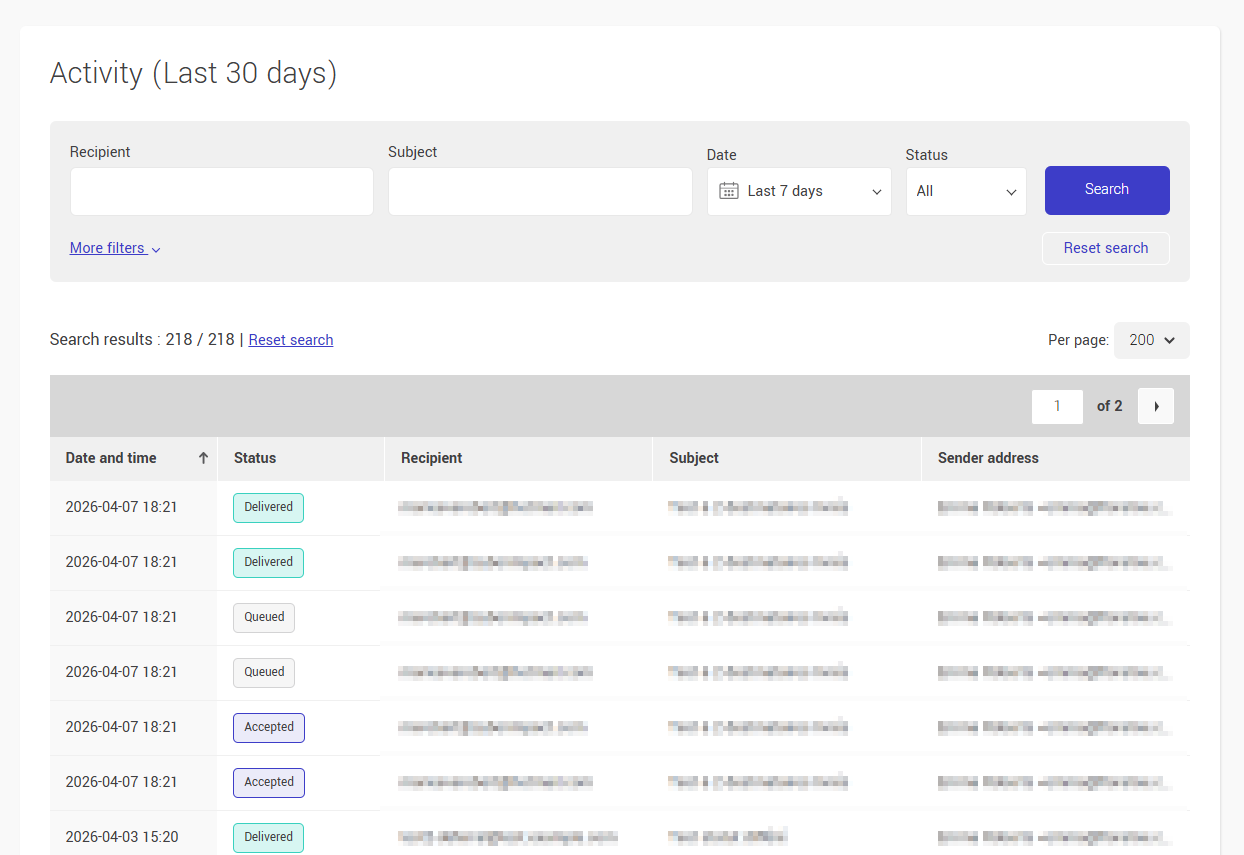
- Use the search fields displayed directly at the top of the activity list: Recipient, Subject, Date, and Status.
- To filter by sender address, click More filters to display this additional field.
- Enter your criteria and click Search to display the matching results.
Tips and tricks
Start with the most specific criterion
If you are looking for a send to a specific recipient, start with their email address, it is generally the most effective criterion for quickly isolating a message.
You don't need the exact term
The text fields accept partial searches. You do not need to enter the recipient's full address. For example, entering the domain name (e.g., gmail.com) will display all mailings to that domain. This also applies to the Subject field and the sender address field.
Combine criteria
Combining a recipient and a period gives more targeted results than a single criterion.
Use the status filter to identify issues
If you want to see all emails that were not delivered at once, filter by Deferred, Soft bounce, or Hard bounce status. This is the fastest way to identify mailings that require your attention.
Once your results are filtered, hover over the status label of an activity to display the reason for the issue directly in the list — useful for quickly understanding the cause without opening other articles.
Export your filtered results
Once your filters are applied, you can export the results in .xlsx format directly from the table header using the "Export activities (.xlsx)" button.
See also: