
The Activity tab allows you to view the history of emails sent via the Cyberimpact SMTP Relay and track their delivery status, recipient by recipient. After reading this article, you will know how to navigate this section and interpret the information displayed.
What it's used for
The Activity tab is useful for:
- Confirming that an email was sent and delivered
- Quickly identifying a delivery issue on a specific mailing
- Tracking the status of a transactional email reported as not received by a recipient
Before you begin
- Have an active SMTP plan on your Cyberimpact account
- Have the required permissions: the Activity tab is accessible to administrators, regular users, and custom users with the Access SMTP activities permission
- The Activity tab displays email activity from the last 30 days.
How it works
Each row in the Activity tab corresponds to one recipient, not one message. If an email was sent to 5 recipients, it will appear on 5 separate rows, each with its own delivery status.
By default, the period displayed covers the last 30 days. The dates and times displayed correspond to the time zone configured on your account.
For each row, you can view:
- The date and time of the mailing
- The delivery status
- The recipient's address
- The email subject
- The sender's address
For the Rejected, Deferred, Soft bounce, and Hard bounce statuses, hover over the status label with your mouse to display the reason for the issue directly in the list.
Step by step
- Log in to your Cyberimpact account and access the SMTP section via the main navigation menu.
- Click the Activity tab.
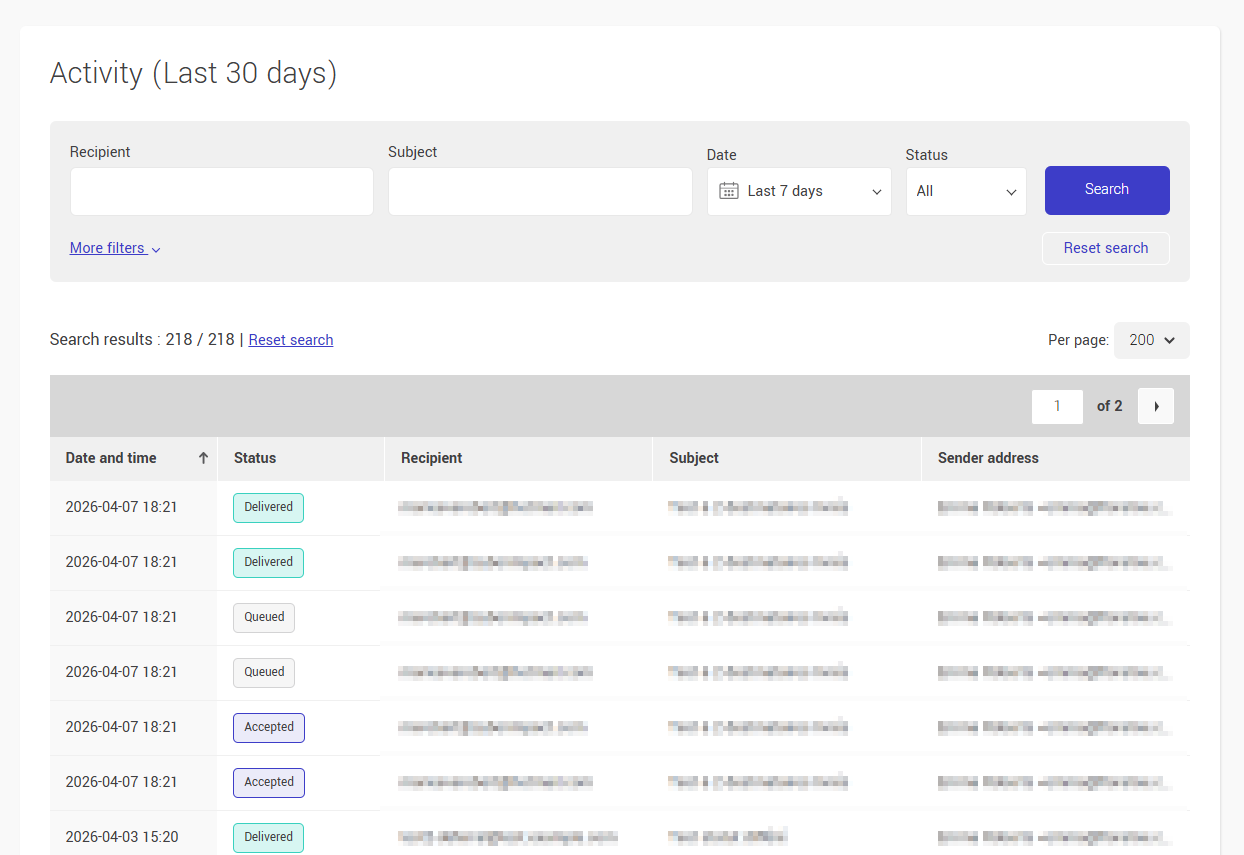
- Browse the list of mailings: each row corresponds to a recipient. Scroll through the list to find the message you are looking for.
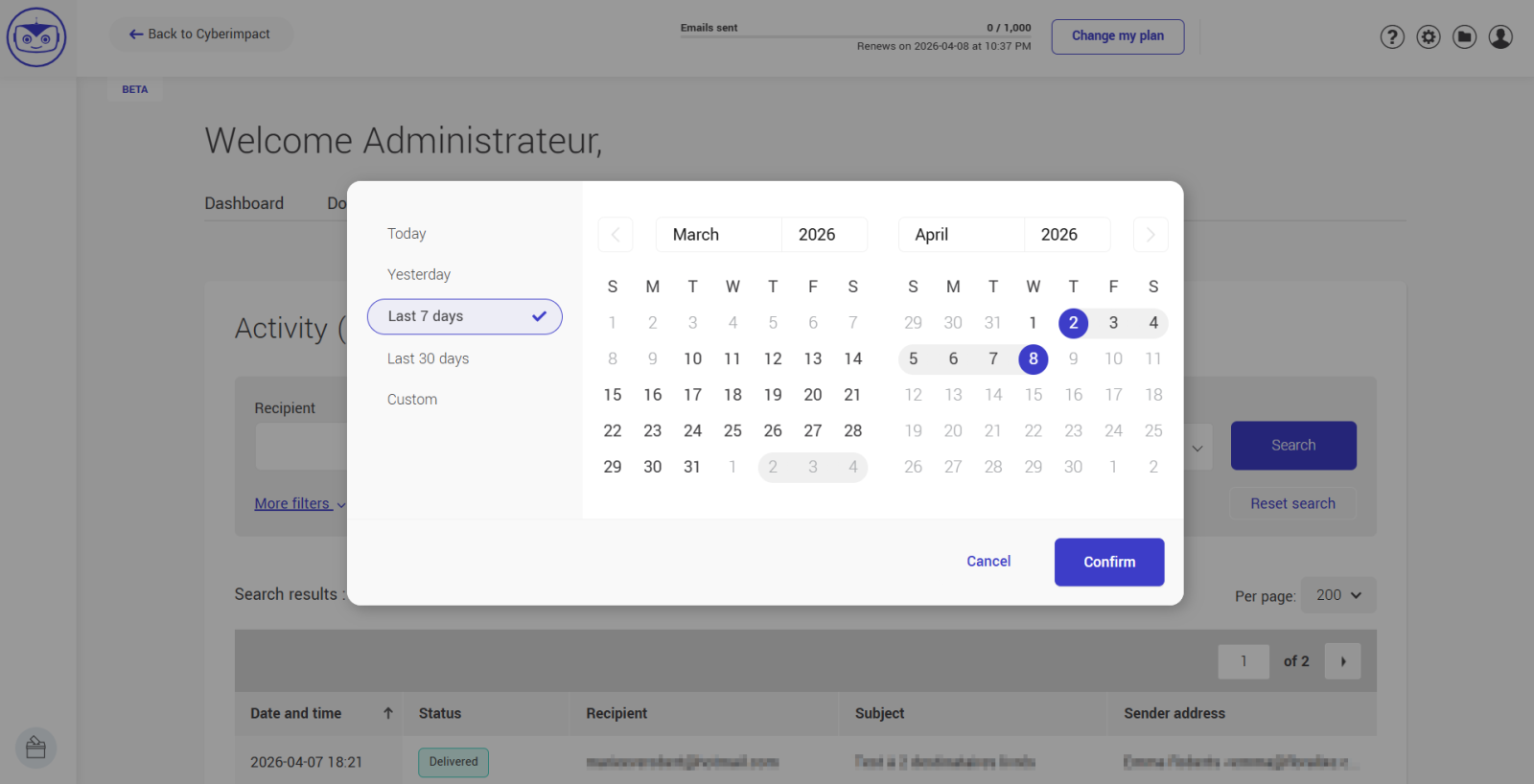
- Filter the results as needed using the date selector or advanced search to refine by recipient, sender, subject, or a specific period.
- Click "Export activities (.xlsx)" in the table header to download the filtered results. A deferred export is launched, you will receive a notification when it is ready.
Understanding delivery statuses
| Status | What it means |
|---|---|
| Rejected | The message was not accepted by the server before sending. Possible causes: invalid address, SMTP sending quota reached on your account, or unauthenticated domain. |
| Accepted | The message was received and accepted by Cyberimpact's server. |
| Pending | The message is in the sending server's queue, waiting to be transmitted to the recipient. |
| Delivered | The message was accepted by the recipient's server. |
| Deferred | A temporary error occurred — the system will automatically retry delivery. |
| Soft bounce | Delivery failed after several attempts due to a temporary cause. |
| Hard bounce | Delivery failed permanently, usually due to an invalid or non-existent address. |
Tips and tricks
A recipient says they did not receive the email
Search for their address in the Activity tab to check the status. If it shows Delivered, the message was accepted by their mail server — the issue may be a spam filter on their end. If it shows Deferred, Soft bounce, or Hard bounce, refer to the article Understanding email statuses for next steps.
Exporting data
The export downloads all results matching the active filters at the time of the click, not just the current page, in .xlsx format. Make sure to apply your filters before exporting if you want a specific subset of your data.
The generated file (smtp-activities.xlsx) includes the following columns: date and time, recipient, subject, sender name, sender address, status, and failure reason (if applicable). Dates and times are exported in your account's time zone, and column headers reflect your interface language.
Data available for 30 days by default
The default period displays the last 30 days. Use the date selector to view an earlier period as needed.
See also: