
Before sending emails via the Cyberimpact SMTP Relay, you must configure and authenticate the domain you want to use as your sender address. This article explains what domain authentication is, why it is necessary, and how to configure it step by step.
What it's used for
Authenticating your domain allows you to:
- Confirm that you are authorized to send emails from that domain
- Improve the deliverability of your emails and reduce the risk of them landing in the spam folder
- Protect your domain against identity spoofing
- Allow receiving servers to verify that your messages come from a legitimate source
Before you begin
- Have an active SMTP plan on your Cyberimpact account
- Own or control the domain you want to configure (e.g., your-company.com)
- A professional domain: only professional domains are accepted. It is not possible to use an address from a free provider such as Gmail, Hotmail, or Yahoo
- Have access to your domain's DNS zone, via your hosting provider or registrar (e.g., GoDaddy, Cloudflare, OVH)
- Administrator access on your Cyberimpact account
How it works
To authenticate your domain, Cyberimpact provides you with 3 CNAME records to add to your domain's DNS zone:
| Record | Role |
|---|---|
| DKIM 1 | Allows Cyberimpact to digitally sign your emails, proving they originate from your domain and have not been altered in transit |
| DKIM 2 | Second signature record, ensures service continuity in the event of security key updates |
| SPF/Return-Path (MX) | Customizes the return address for bounce management and enables SPF validation, a verification that confirms your domain is authorized to send emails via Cyberimpact's IP addresses |
Once these records have been added and propagated, Cyberimpact automatically verifies them and updates the statuses in your account.
Cyberimpact also displays the DMARC status of your domain in the interface. However, the absence or invalidity of a DMARC record does not block your mailings, only the 3 CNAME records are required.
DMARC is displayed for informational purposes and we strongly recommend it. Gmail, Yahoo, and Microsoft require a valid DMARC for domains sending high volumes. If you use Cyberimpact for both email marketing and the SMTP Relay with the same domain, your volumes can add up faster than expected.
Step by step
- Log in to your Cyberimpact account and access the SMTP section via the main menu.
- Click the Domains tab, then click + Add a domain.
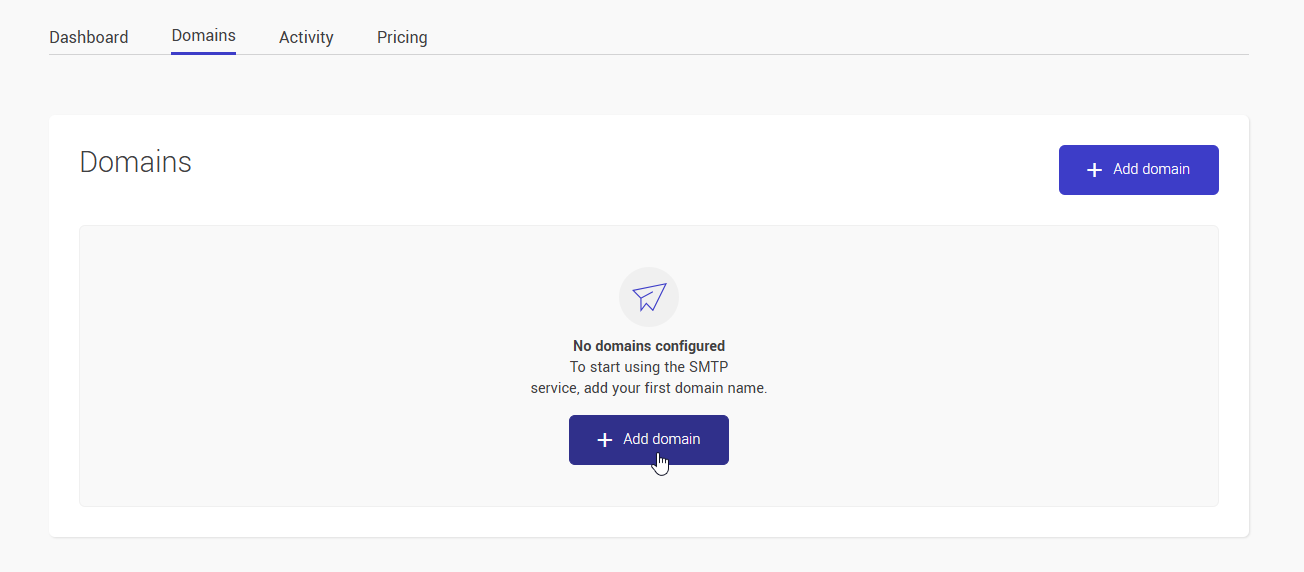
- Enter your domain name (e.g., your-company.com) and save.
- View the DNS records to configure: Cyberimpact displays the 3 CNAME values to copy into your DNS zone.
.png)
- Log in to your DNS manager (your hosting provider or domain registrar) and add the 3 CNAME records by copying exactly the values provided by Cyberimpact.
- Wait for DNS propagation: depending on your provider, this can take anywhere from a few minutes to 48 hours.
- Return to your Cyberimpact account, Domains tab: the DKIM 1, DKIM 2, and SPF/Return-Path (MX) statuses will update automatically once propagation is complete.

- Verify that all 3 statuses are valid before starting to send emails with this domain.
Tips and tricks
DNS propagation can take time
If your records are not yet detected after a few minutes, wait and check back later. In some cases, propagation can take up to 48 hours depending on your DNS provider.
Only two statuses: Valid or Invalid
During DNS propagation, your records may appear as Invalid. There is no intermediate "Pending" status — this is normal. Wait and check back later, or click Refresh now on your domain card to trigger an immediate manual check.
Copy DNS values exactly as displayed
A single error in a CNAME record value will cause validation to fail. Use the Copy button in the interface rather than entering the values manually.
Why are there two DKIM records?
The two DKIM records allow Cyberimpact to rotate signing keys without interrupting your mailings. This strengthens your domain's security over the long term, with no action required on your part.
The SMTP Relay and your DMARC policy
By configuring the SMTP Relay, Cyberimpact customizes the return address of your emails with your own domain. This strengthens the alignment of your mailings with your DMARC policy — an added benefit for your long-term deliverability.
Deleting a domain
You can remove a domain from the Domains tab. Note that this action disables sends associated with that domain and also disables all SMTP users linked to it. If you recreate this domain later, new CNAME records will be assigned to you. You will need to reconfigure them in your DNS zone before you can send again. Other domains on your account are not affected.
No need to validate each email address
You do not need to validate each email address individually. Simply authenticate your domain once — all addresses from that domain can then be used for sending.