
To send emails via the Cyberimpact SMTP Relay, your software needs login credentials: an SMTP username and password. This article explains how to create them and where to find them in your Cyberimpact account.
What it's used for
SMTP credentials are used to authenticate your software or application with Cyberimpact's sending server. Without these credentials, your tool will not be able to connect to the service and send emails.
- Connect your website, CRM, or internal application to the SMTP Relay
- Create separate access credentials per tool or use case (e.g., one set of credentials for WordPress, another for your CRM)
- Revoke access for a specific tool without affecting the others
Before you begin
- An active SMTP plan on your Cyberimpact account
- A configured sending domain: credentials are linked to a domain. If you haven't added a domain yet, refer to the article SMTP domains and their authentication
- Administrator access: only account administrators can access the Domains tab and manage SMTP users
How it works
Each sending domain configured in your account can have one or more SMTP users. An SMTP user is simply a username and password pair that you enter into your software to authorize sends.
A few important rules to know:
- The password is only displayed once, at the time of creation. If you lose it, you will need to reset it — the old one will stop working immediately
- You can create multiple users for the same domain, one per tool if needed
- The username is automatically generated by Cyberimpact and cannot be modified
- An SMTP user is linked to an exact domain. If you want to send from a subdomain (e.g., notifications.mycompany.com), you must configure that subdomain separately and create a dedicated SMTP user for it. A user linked to http://mycompany.com cannot send from notifications.mycompany.com
Step by step
- Log in to your Cyberimpact account and click the SMTP tab in the main navigation menu.
- Click the Domains tab to view the list of your configured domains.
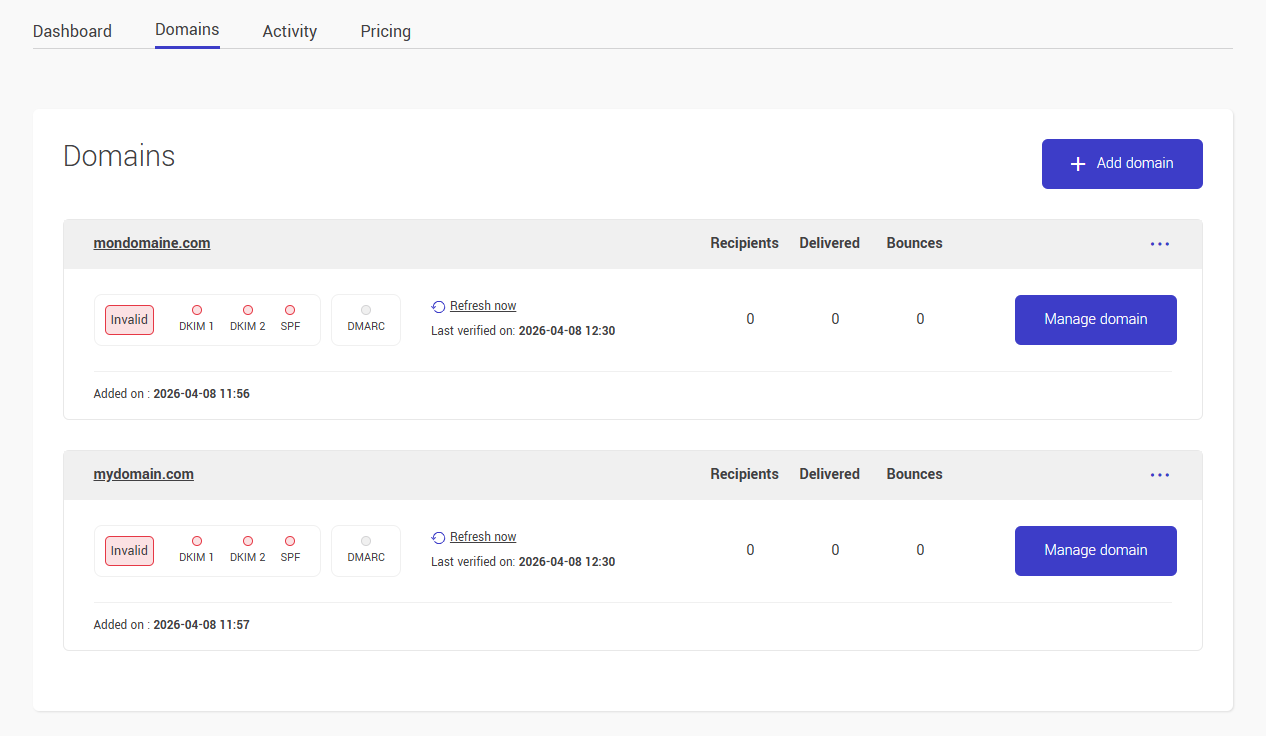
- Click on the domain for which you want to create credentials.
- Scroll down to the Users section and click + Add a user.
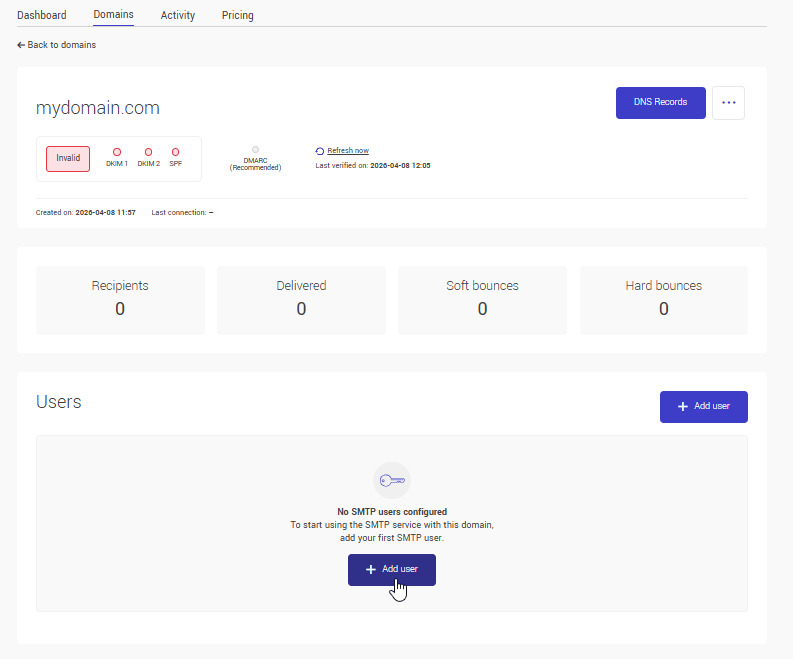
- Enter a name for the SMTP access, choose a descriptive name that identifies the tool or use case (e.g., WordPress, CRM, Contact Form).
- Click Save, Cyberimpact automatically generates the username and password.
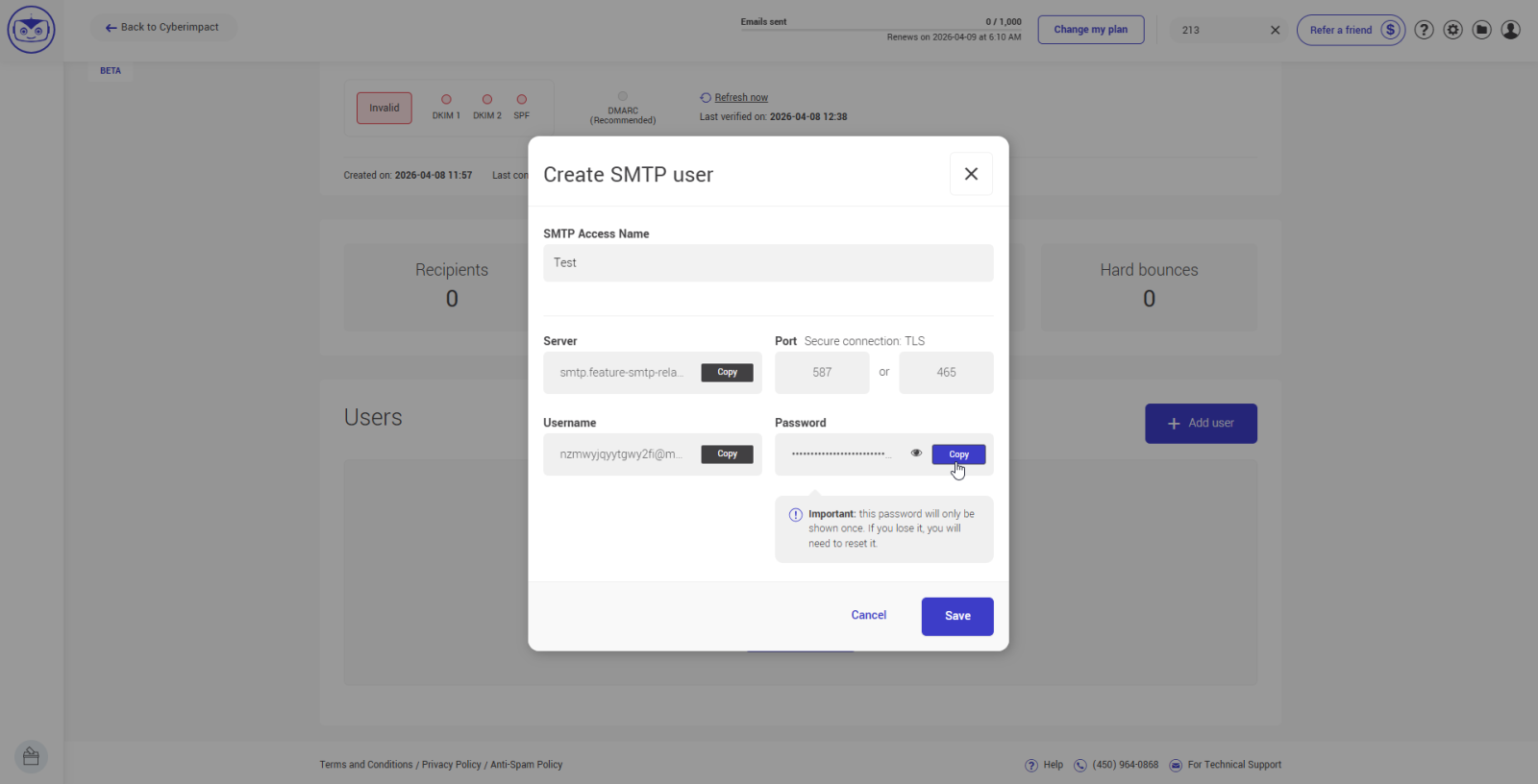
- Copy the password immediately using the Copy button, it will no longer be visible after closing this window.
- Also note the username and server address displayed in the same window, you will need them to configure your software.
Tips and tricks
Lost your password?
If you close the window without copying the password, it will no longer be retrievable. You will need to click Reset in the user settings.
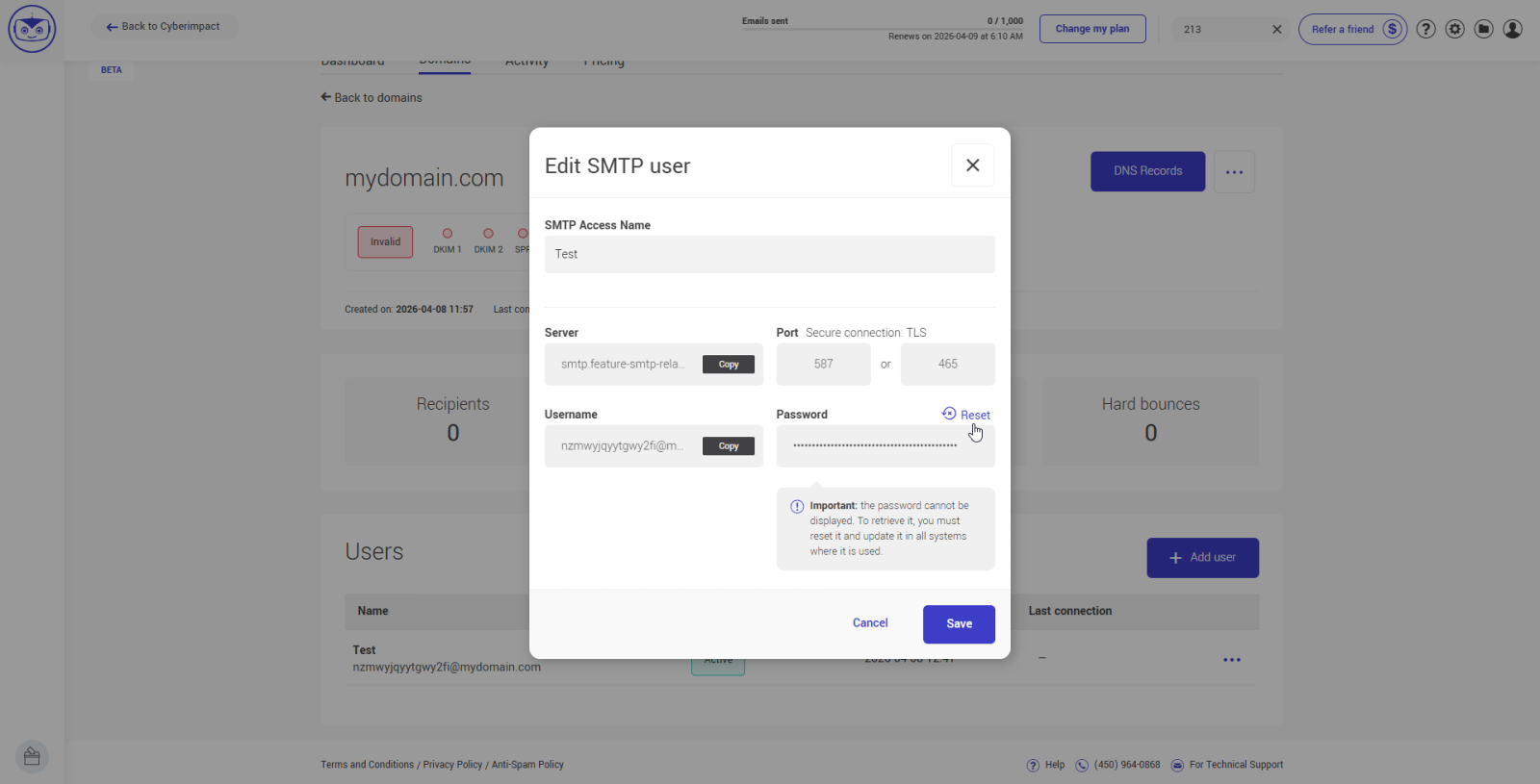
The old password will stop working immediately — remember to update it in all tools that use it.
One user per tool
Create a separate SMTP user for each piece of software you connect. That way, if you need to revoke access for one tool, the others are not affected.
Deleting a user is irreversible
If you delete an SMTP user, it cannot be reactivated. You will need to create a new user and update the configuration in all tools that were using the old credentials. If in doubt, prefer resetting the password rather than deleting the user.
Where to find the username after creation?
The password is no longer visible, but the username remains accessible at any time from the user's profile in the Domains tab.
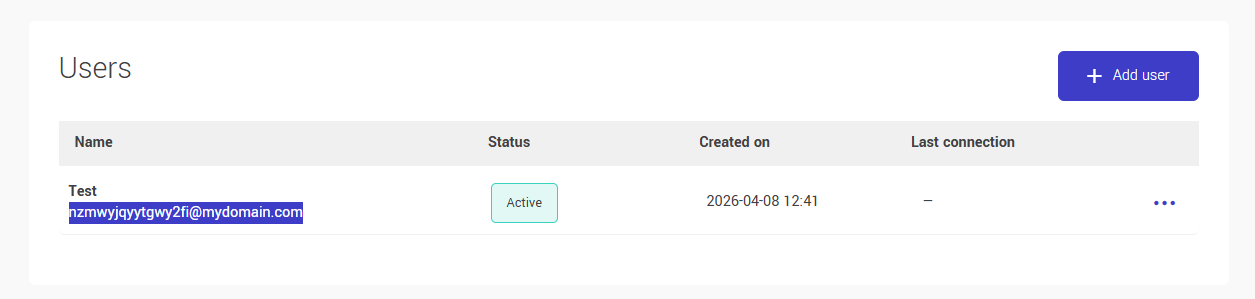
What does "Last connection" mean?
This field indicates the last time the SMTP user successfully authenticated with the server — not necessarily the last time an email was sent. A user may have connected without having transmitted a message.
See also: