
Before sending emails to real recipients, it is recommended to run a few tests to make sure your application is properly connected and that emails are being sent and delivered correctly. This article walks you through the essential validation steps.
What it's used for
Testing your SMTP integration allows you to:
- Confirm that the connection between your application and Cyberimpact's server is working
- Validate that your credentials are correct before sending to real recipients
- Detect delivery or configuration issues early, before they affect your users
- Make sure your emails pass filters and land in the inbox
Before you begin
- Have completed the SMTP configuration in your application (server, port, credentials). Refer to the article SMTP configuration: connection settings if this hasn't been done yet
- Have access to a test inbox to receive and verify sent emails
- Have access to the Activity tab of your SMTP account to track delivery statuses
Step by step
- Access the SMTP mailings settings of your application and make sure the configuration is complete: server, port, encryption, username, and password.
- Send a test email from your application to an inbox you control (e.g., your personal or professional address).
- Check your application's response: if the connection fails or authentication is refused, an error message should appear. Refer to the Tips and tricks section for common errors.
- Log in to your Cyberimpact account and go to the SMTP section, Activity tab.
- Locate your test email in the list. You should see a row with the recipient, the send date, and the delivery status.
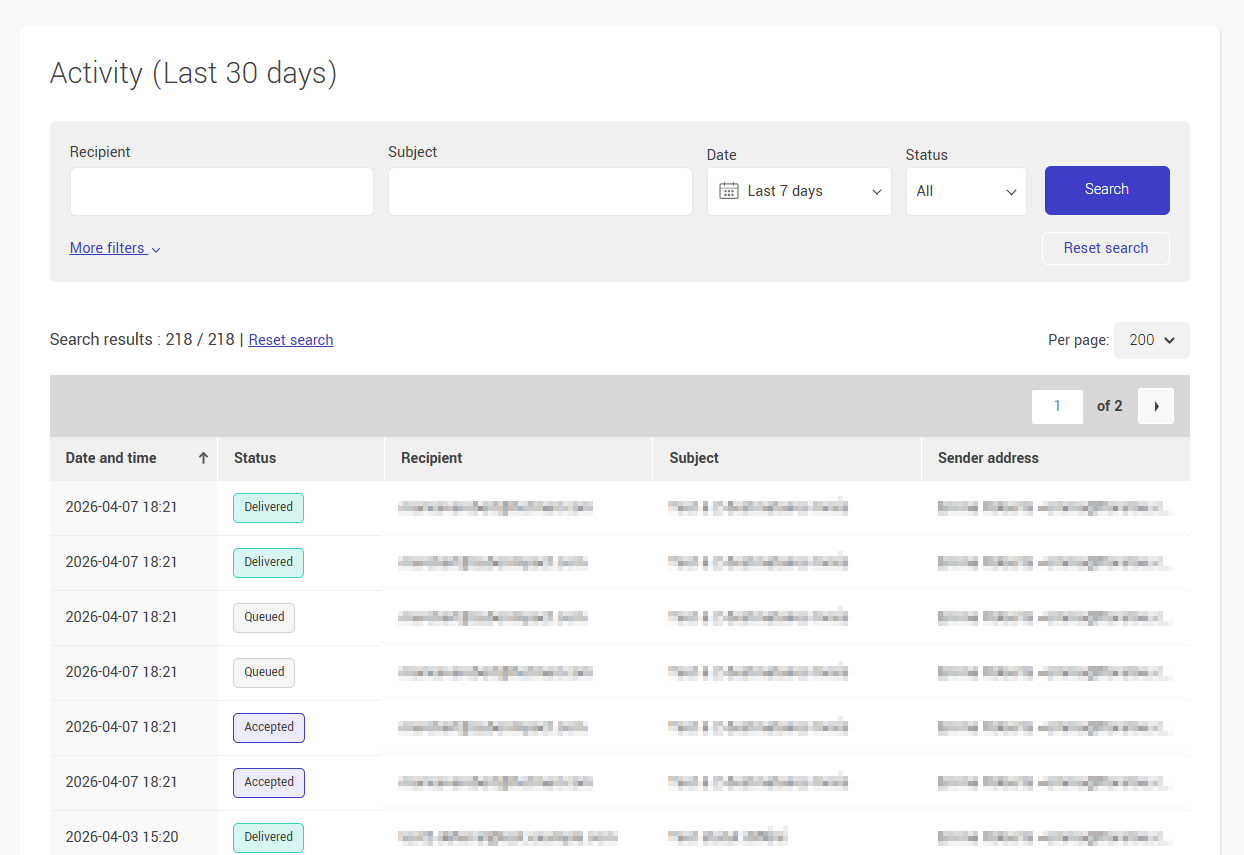
- Check the email status: a Delivered status confirms everything is working correctly. A Deferred, Soft bounce, or Hard bounce status indicates a problem to investigate.
Learn more about send statuses > - Check the test recipient's inbox to confirm the email arrived and did not land in the spam folder.
Recommended test scenarios
Before sending emails to your real recipients, test these situations:
- Simple mailing: one recipient, no attachment — to validate the basic connection
- Mailing with attachment: to make sure your files stay within the 20 MB limit
- Mailing to multiple recipients: up to 50 recipients per message
Tips and tricks
The connection fails immediately
Check that the configured port (587 or 465) is accepted by your application, and that TLS encryption is enabled. An unencrypted connection will always be refused.
Authentication is refused
Make sure the username and password match exactly what is displayed in your Cyberimpact account. The SMTP password is case-sensitive. If in doubt, reset the password from the user's profile.
The test email does not appear in the Activity tab
If your message does not appear, this may indicate that the connection to the SMTP server did not go through. Check your application's error logs to identify the problem.
The email lands in the spam folder
Check that your DKIM 1, DKIM 2, and SPF/Return-Path (MX) records are properly configured in the Domains tab of your SMTP account. If all three records are valid but the problem persists, also check your DMARC record. Its absence can affect deliverability with providers like Gmail, Yahoo, and Microsoft. Learn more about domain authentication >
Did you just configure your DNS records?
DNS propagation can take anywhere from a few minutes to 48 hours depending on your hosting provider. If your test email fails even though your configuration looks correct, wait a few hours and try again before looking for another issue. You can check the status of your records at any time from the Domains tab of your account.
See also: