
In this article:
The Cyberimpact SMTP Relay allows you to send transactional emails directly from your own software, using Cyberimpact's reliable infrastructure. After reading this article, you will understand what this service is, who it is for, and in which contexts to use it.
What it's used for
The SMTP Relay is designed for businesses that need to send automated emails from their own tools (website, CRM, internal application), without managing their own mail server.
Typical use cases:
- Send order confirmations from your online store
- Deliver automated notifications (alerts, status updates, reminders)
- Route emails generated by your CRM or internal application
- Connect third-party tools (WordPress, WooCommerce, etc.) to Cyberimpact's sending infrastructure
Before you begin
Before using the SMTP Relay, make sure you have the following:
- A Cyberimpact account: the SMTP Relay is available with all Cyberimpact plans, including the free plan. If you don't have an account yet, create one for free before continuing.
- An active SMTP plan: a free plan of 500 emails/month is included to get started; paid plans are available based on your volume. Learn more >
- Sufficient access on your account: only account administrators have access to all SMTP features and can configure sending domains and SMTP users. Regular and custom users have limited access based on their role.
Learn more > - A domain name you control, with access to its DNS zone: you will need to add DNS records to authenticate your mailings and configure DKIM and the Return-Path.
Learn more >
How it works
When you send an email via the SMTP Relay, your software connects to Cyberimpact's server using an SMTP username and password. Cyberimpact then handles the routing of the email to the recipient, applying authentication and delivery rules.
For your emails to be properly recognized and delivered, you must first authenticate your sending domain. This involves adding 3 CNAME records to your domain's DNS zone:
- DKIM 1 and DKIM 2: allow Cyberimpact to digitally sign your emails, proving they originate from your domain
- SPF / Return-Path (MX): customizes the return address for bounce management
Pratical example: Your online store sends an order confirmation. Your platform connects to Cyberimpact's SMTP server with your credentials, hands off the email to Cyberimpact, which signs and delivers it to the customer's inbox.
Step by step
Here are the main steps to start using the SMTP Relay:
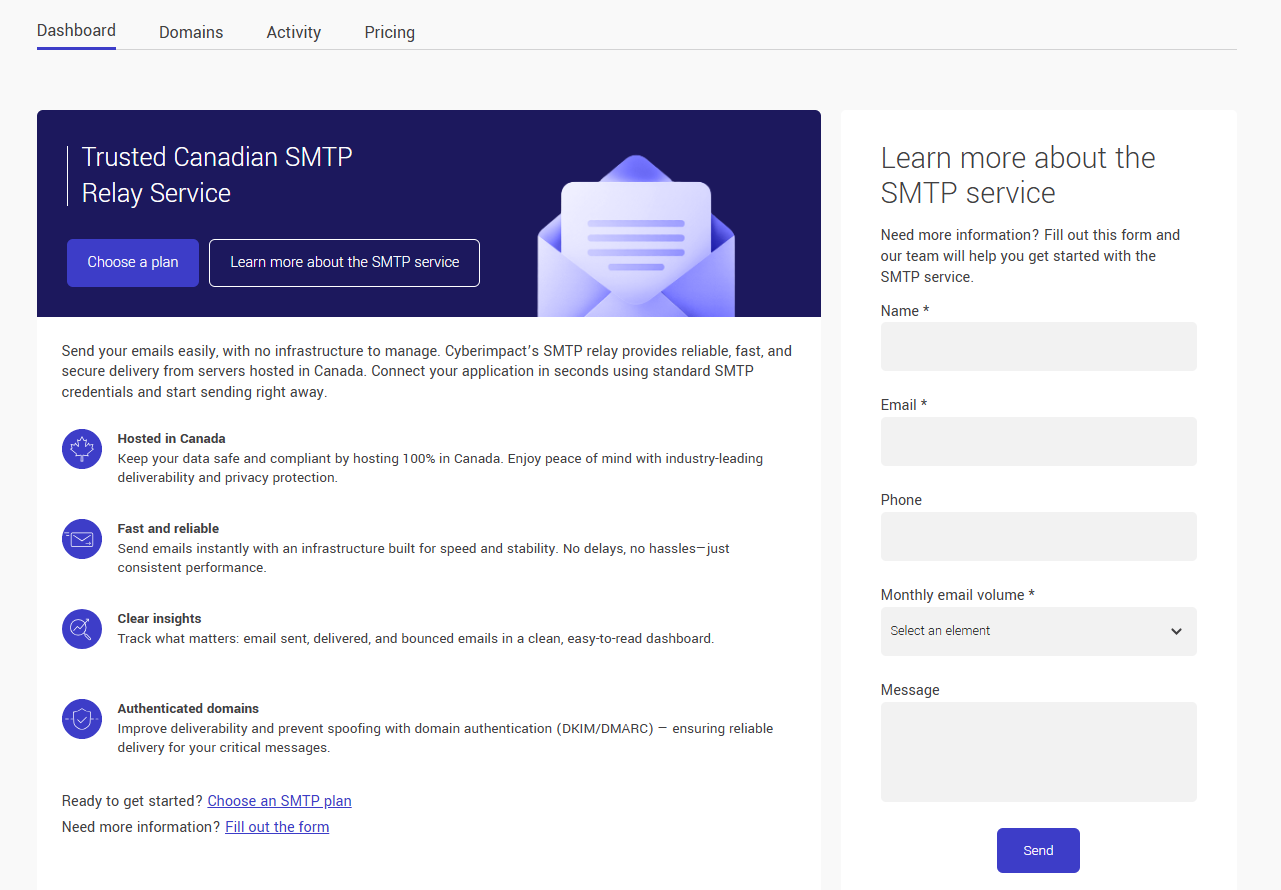
- Access the SMTP section from your Cyberimpact account via the SMTP tab in the main navigation menu.

- Choose how to get started:
- If you're ready to go, head to the Pricing tab and click Choose a plan to the right of the desired plan. A form will appear, fill it out and a member of our team will contact you to activate your plan.
- If you'd like to learn more or get help choosing, fill out the Learn more about the SMTP service form from the dashboard and a member of our team will reach out.
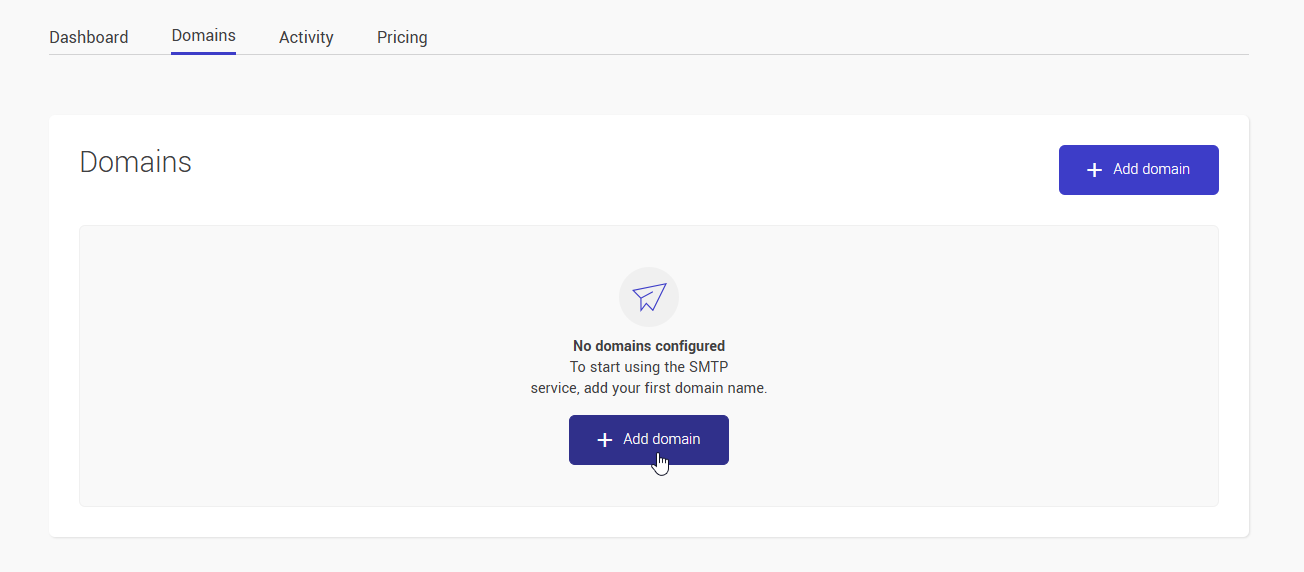
- Once your plan is activated, add your sending domain in the Domains tab by entering the domain name from which you want to send your emails.
- Configure your DNS records: Cyberimpact provides the 3 CNAME values to copy into your domain's DNS zone (DKIM 1, DKIM 2, SPF/Return-Path (MX)).
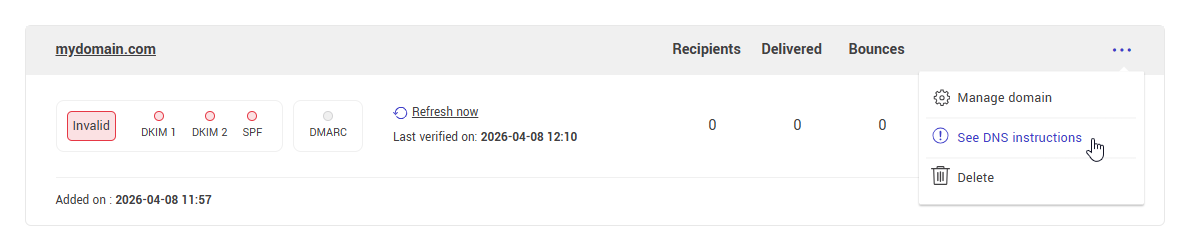
- Wait for DNS propagation: this can take anywhere from a few minutes to 48 hours depending on your hosting provider.
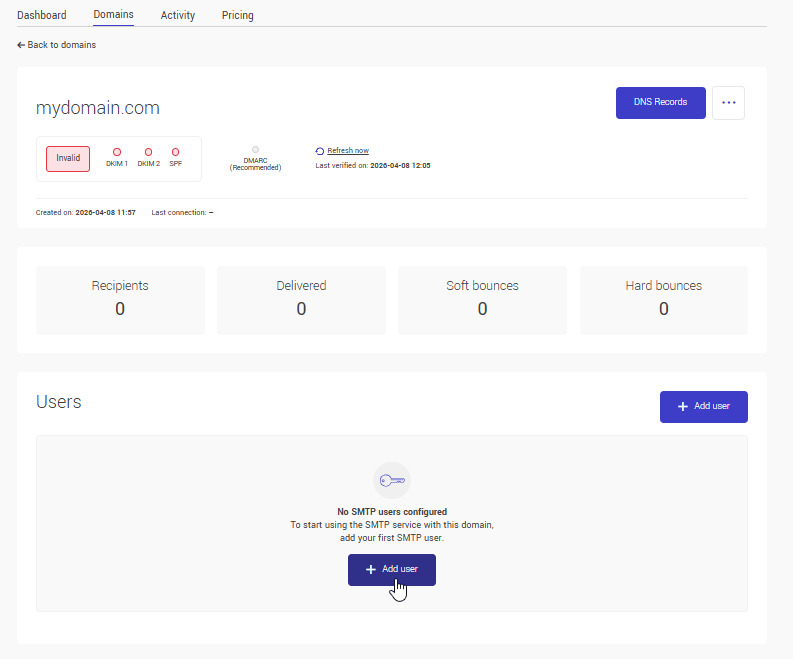
- Create an SMTP user: from your domain page, click + Add a user to generate your login credentials (username and password).
- Configure your software or application with the provided SMTP settings:
- Server: smtp-relay.cyberimpact.com (shown in the interface)
- Port: 587 (STARTTLS) or 465 (SSL/TLS) (see note: Difference between port 587 and 465)
- Username and Password: generated in the previous step
- Send a test email from your application to validate the connection.
Tips and tricks
You can create multiple SMTP users
If you use multiple applications or tools, it is recommended to create a separate SMTP user for each one. This makes it easier to track activity and manage access.
Track your mailings in the Activity tab
View delivery status per recipient, by default for the last 30 days.
Quota alerts
You will automatically receive an email alert when you reach 80%, 90%, and 100% of your monthly quota. At 100%, mailings are blocked until renewal.
Is DMARC required?
No, but we strongly recommend it. DMARC is a protection layer that tells receiving servers what to do if an email fails authenticity checks. Its absence does not block your mailings— the 3 CNAME records (DKIM 1, DKIM 2, SPF/Return-Path (MX)) are the only ones required to send.
However, Gmail, Yahoo, and Microsoft require a valid DMARC for any domain sending more than 5,000 messages per day. This threshold includes all your combined sends — if you use Cyberimpact for both email marketing and SMTP Relay with the same domain, the volumes add up. Setting up your DMARC from the start is the best way to protect your deliverability long-term and avoid your emails being filtered as spam.
Is there a free plan for the SMTP Relay?
Yes. A free plan of 500 emails/month is available to discover the service or cover low volumes at no cost. Paid plans are available if you need a higher volume.
Do I need to already be a Cyberimpact customer to use the SMTP Relay?
The SMTP Relay is available with all Cyberimpact plans, including the free plan. If you don't have an account yet, you will need to create one for free at https://cyberimpact.com before you can activate the service.
See also: