
In this article:
How does the free account work?
The free account allows you to test all functionnalities of the application to see if it suits your needs.
To get your free account, all you have to do is fill the form on our website.
Your access codes will be sent to you by email.
The difference between a free account and a regular account:
There is no restrictions regarding the functionnalities of the application. The only difference is that the free account is limited to 250 contacts.
To send out your first mailing, follow these three steps:
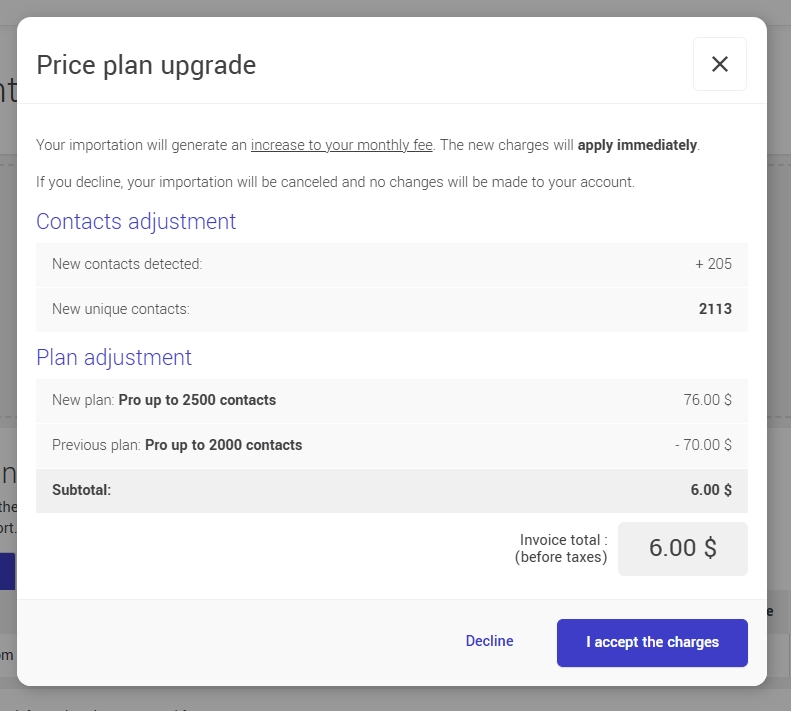
You are trying to import a list on contacts into your account and see the following message appearing:
What to do?
Option 1: You don't want to change plans right away.
Click the Cancel button. The import of your new contacts will be canceled. You can then reduce your list and import it again so that it stays within the limit of your free account.
Note: A contact is defined as a subscriber, with or without a group.
Each contact is counted only once, no matter how many groups they belong to. Unsubcribed contacts and invalid adresses do not count toward your plan's limit.
Option 2: You want to continue the import and switch to a paid plan
- Click the Choose a plan button. You will be taken to the Plans and billing page.
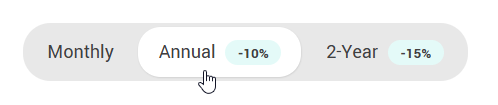
- Select the billing period you want at the top of the grid: Montlhy, Annual or 2 years.
- Click Choose this plan under the plan you want. A pop-up opens.
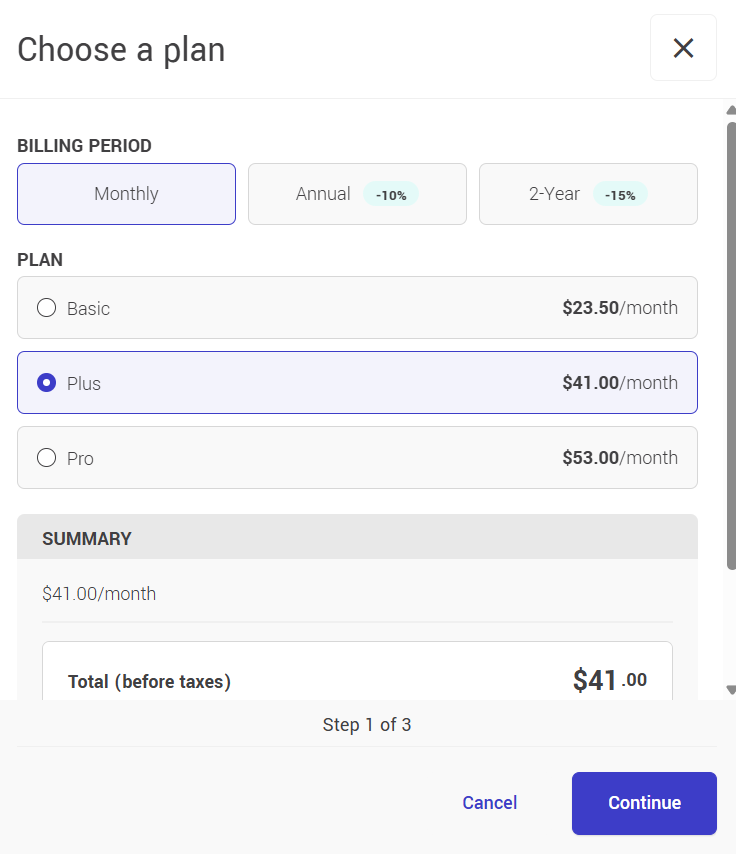
- In step 1, review the billing period, the plan and the price summary, then click Continue.
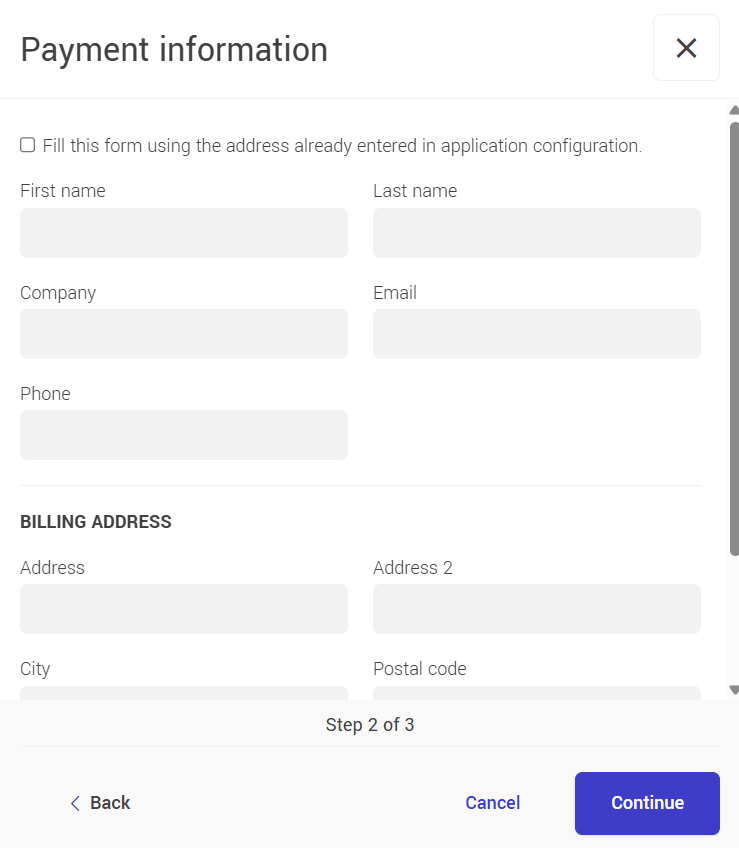
- In step 2, enter your payment information (contact details and billing adress), then click Continue.
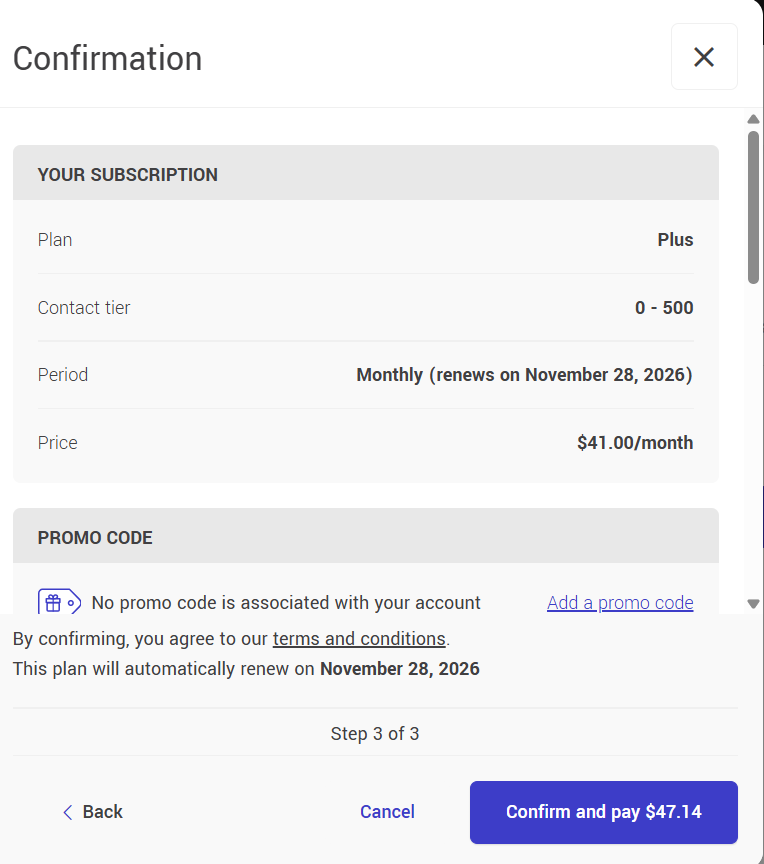
- In step 3, review your subscription summary, plan, contact tier, billing period, renewal date and price. You can also add a promo code if needed.
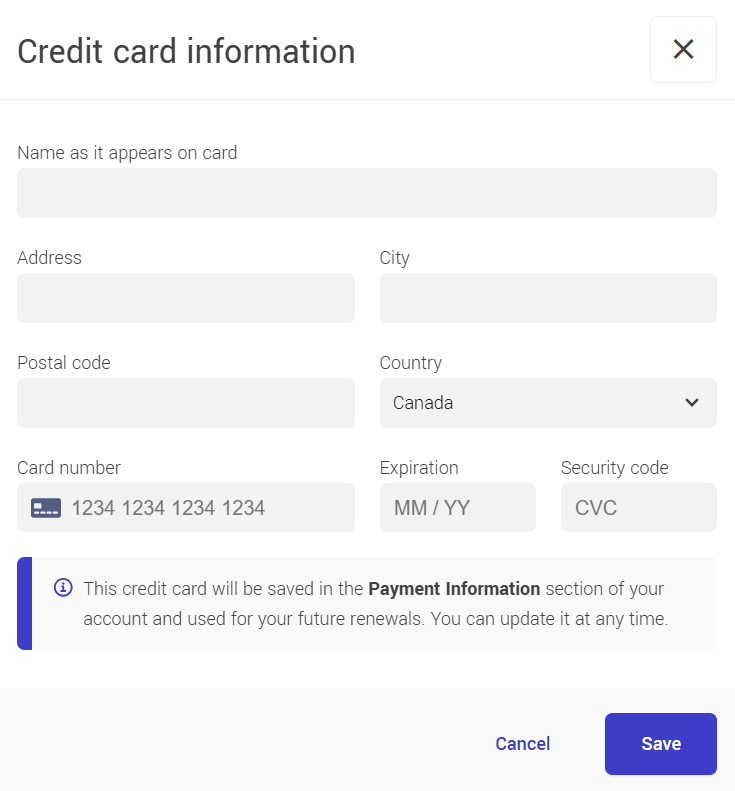
- If no credit car is linked to your account, click Add your card. Enter the card informaiton, then click Save. This card will be saved in the Payment information section of your account and used for future renewals. You wil then return to the confirmation step.
- Click Confirm and pay. The amount shown on the button includes taxes.
A message confirm that your plan has been activated and shows its automatic renewal date. A receipt will be sent to you by email once the payment has been processed.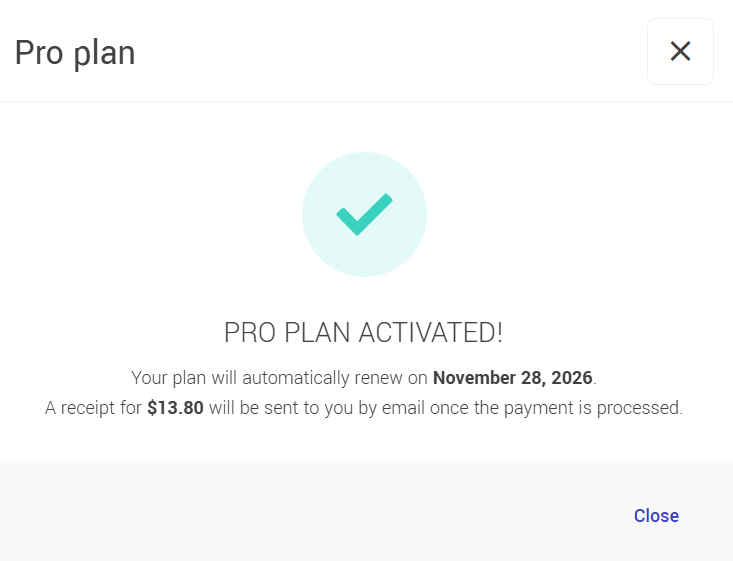
Your account is then ready to use, and you can pick up where you left off.