
In this article:
This article presents all the settings needed to connect your application or software to the Cyberimpact SMTP Relay. After reading it, you will know which settings to enter in your tool for sends to work correctly.
What it's used for
This configuration allows your application to authenticate with Cyberimpact's server and send emails using Cyberimpact's sending infrastructure. This is the step that follows the creation of your SMTP credentials.
Before you begin
- Have created an SMTP user in your Cyberimpact account. If this hasn't been done yet, refer to the article How to retrieve your SMTP credentials
- Have your SMTP username and password on hand
- Have access to the outgoing connection settings of your application or software
Connection settings
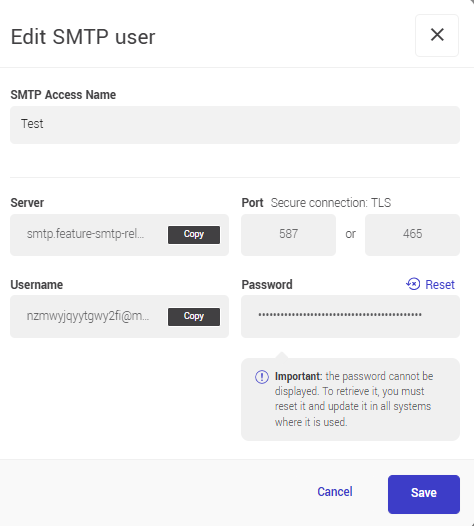
Here is the information to enter in your application to establish the connection:
| Parameter | Value |
|---|---|
| SMTP Server | smtp-relay.cyberimpact.com |
| Port | 587 (STARTTLS) or 465 (SMTPS) |
| Encryption | TLS required |
| Username | Automatically generated, available in your account |
| Password |
Created when adding the SMTP user |
How it works
Available ports
Two options are available depending on what your application supports:
- Port 587 with STARTTLS: the connection is first established in plain text, then automatically switches to encrypted mode before authentication. This is the most common option.
- Port 465 with SMTPS: the connection is encrypted from the moment it opens. Some older software uses this port.
If your application asks which port to choose, go with 587.
Authentication methods
The Cyberimpact SMTP service supports the PLAIN and LOGIN authentication methods. Most applications use them automatically — no special configuration is needed on your end.
Step by step
- Open the SMTP connection settings of your application (usually found in the email sending or notifications settings).
- Enter the SMTP server address: smtp-relay.cyberimpact.com. To find your complete connection information, go to the Domains tab, click on your domain to open its page, then in the Users section, click to the right of the relevant user to open the action menu and select View details.
- Choose the port: 587 for STARTTLS or 465 for SMTPS, depending on what your application offers.
- Enable TLS or SSL encryption according to your application's terminology.
- Enter your SMTP username as displayed in your account.
- Enter your SMTP password. If you no longer have it, you will need to reset it from the user's profile.
- Save the configuration and send a test email to validate the connection.
- Check the result in the Activity tab of your SMTP account.
Service limits
These limits apply to all accounts, regardless of plan:
| Parameter | Limit |
|---|---|
| Recipients per message |
50 |
| Maximum message size (attachments included) |
20 Mo |
| Concurrent sessions per SMTP user |
10 |
| Concurrent sessions per account |
20 |
| Concurrent sessions per IP address |
100 |
| Inactivity timeout per session | 120 seconds |
| Maximum session duration | 30 minutes |
| Maximum messages per session | 20 |
| Anti-brute-force protection | After several failed login attempts, your IP address may be temporarily blocked. Make sure you have the correct credentials before testing your configuration. |
See also: