
In this article :
- How to add anchors to your template
- How to edit or delete your anchor
- Problems with anchors
It is possible to create links to different parts of your newsletter. For exemple, when your email is quite long, to allow your reader quick access to the news he is interested in, you can create a small table of content in which your contact will be able to click to access desired content.
Reminder: It is best to avoid really long emails.
Learn more >
How to add anchors in your template:
To create a link between different parts of your newsletter, follow the steps below:
- Start by adding your text content in your template. You also have to prepare a text on which you will put the links your member can click to access the different parts of your newsletter. For example a list with bullets.
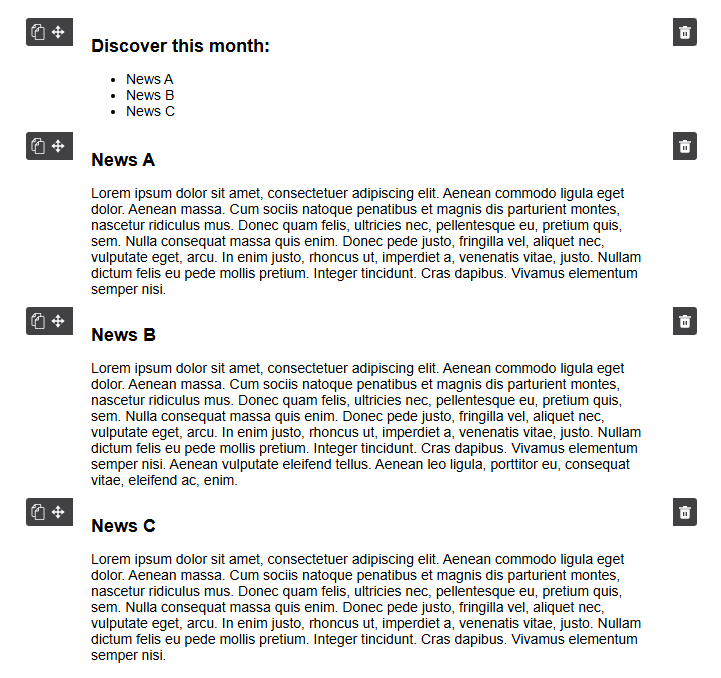
- Once your text has been entered, put your mouse at the spot you would like to put your anchor, in other words where you would like the reader to land when the link is clicked.
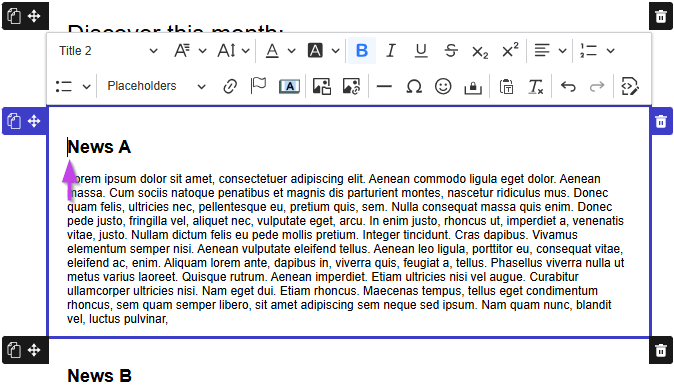
- Then, click on the flag icon (anchor) located in the middle of the bottom row in the “Edit text” box.
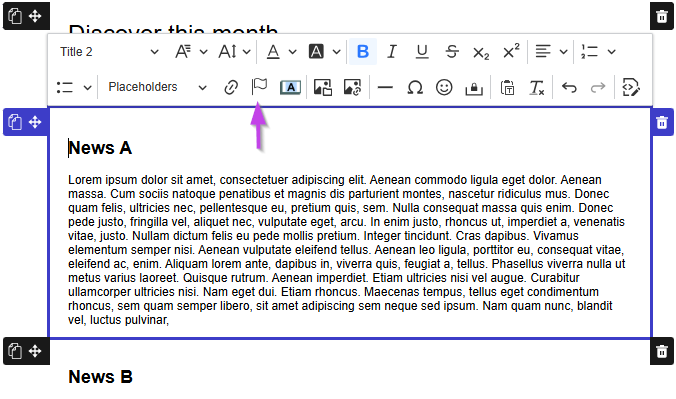
- A dialog box called Anchor will open. Give a name to your anchor. Avoid spaces, special characters and apostrophes in the name. Then, click Insert to confirm.
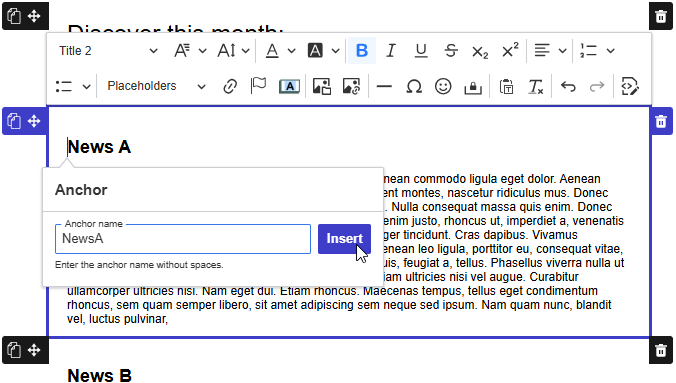
You will then see a flag appear where you had placed your mouse previously in your text. This is the anchor.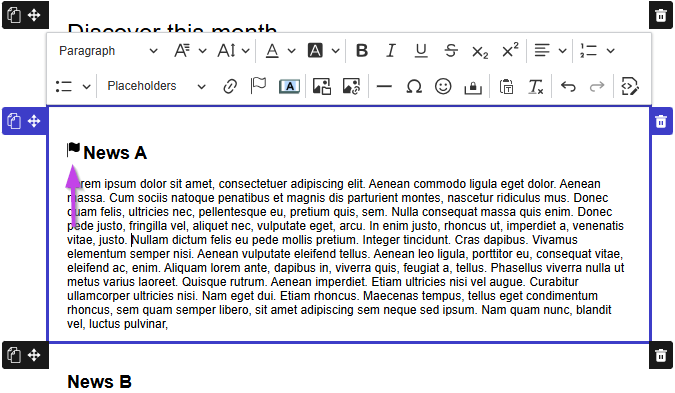
- You now need to create a link to your anchor. To do so, use your mouse to highlight the text on which you want to put the link and then click on the link icon represented with a chain.
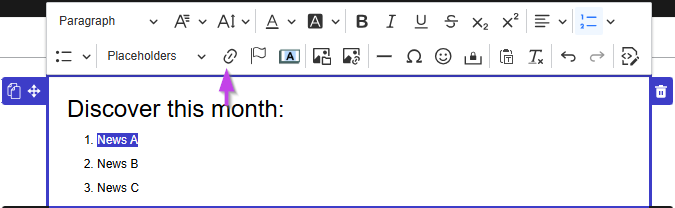
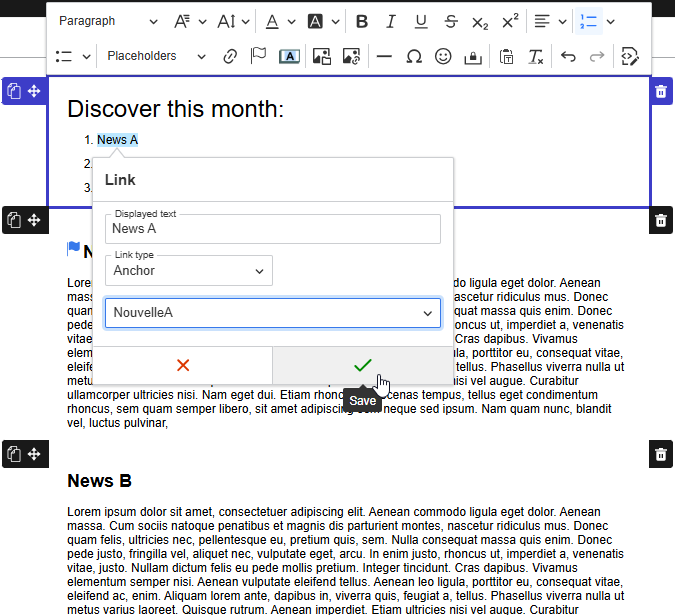
- To build the link:
a) In the Link type dropdown menu, select Anchor.
b) In the Select an anchor section, choose the desired anchor from the By anchor name dropdown menu and then click the green checkmark to confirm.
- Now, all that remains is to test your link to make sure it works correctly. Of course, if you have other anchors to insert in your blocks you need to repeat these steps for each of them.
How to edit or delete your anchor
You made an error and wish to edit or delete your anchor, here is how to proceed :
- Click on the flag icon.
- Select the pencil icon to edit the anchor text, or the trash icon to remove the anchor completely.
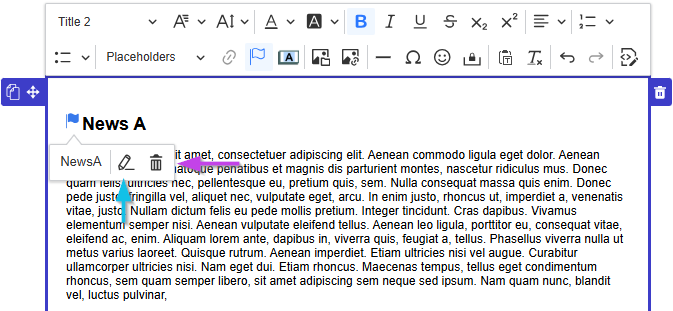
Note: In both cases, don’t forget to change the links that were associated to these anchors, if any.
Problems with Anchors
Anchors are generally well supported but could refuse to work on some email softwares.
For example, on iPhone/iPad, in most email apps (like Apple Mail, Gmail, Outlook and Yahoo), anchors don't work. Nothing happens when you click on these links. As for devices on Android, anchors will work on the Gmail app, but not in Samsung Mail.
Learn more about the compatibility of anchors link >