
A QR code allows you to easily share a landing page. Your contacts or visitors can access your page simply by scanning the code with their mobile device, without needing to type the URL. It is a practical tool for printed marketing campaigns, trade shows, or business cards.
How to generate the QR code?
- Go to the section.
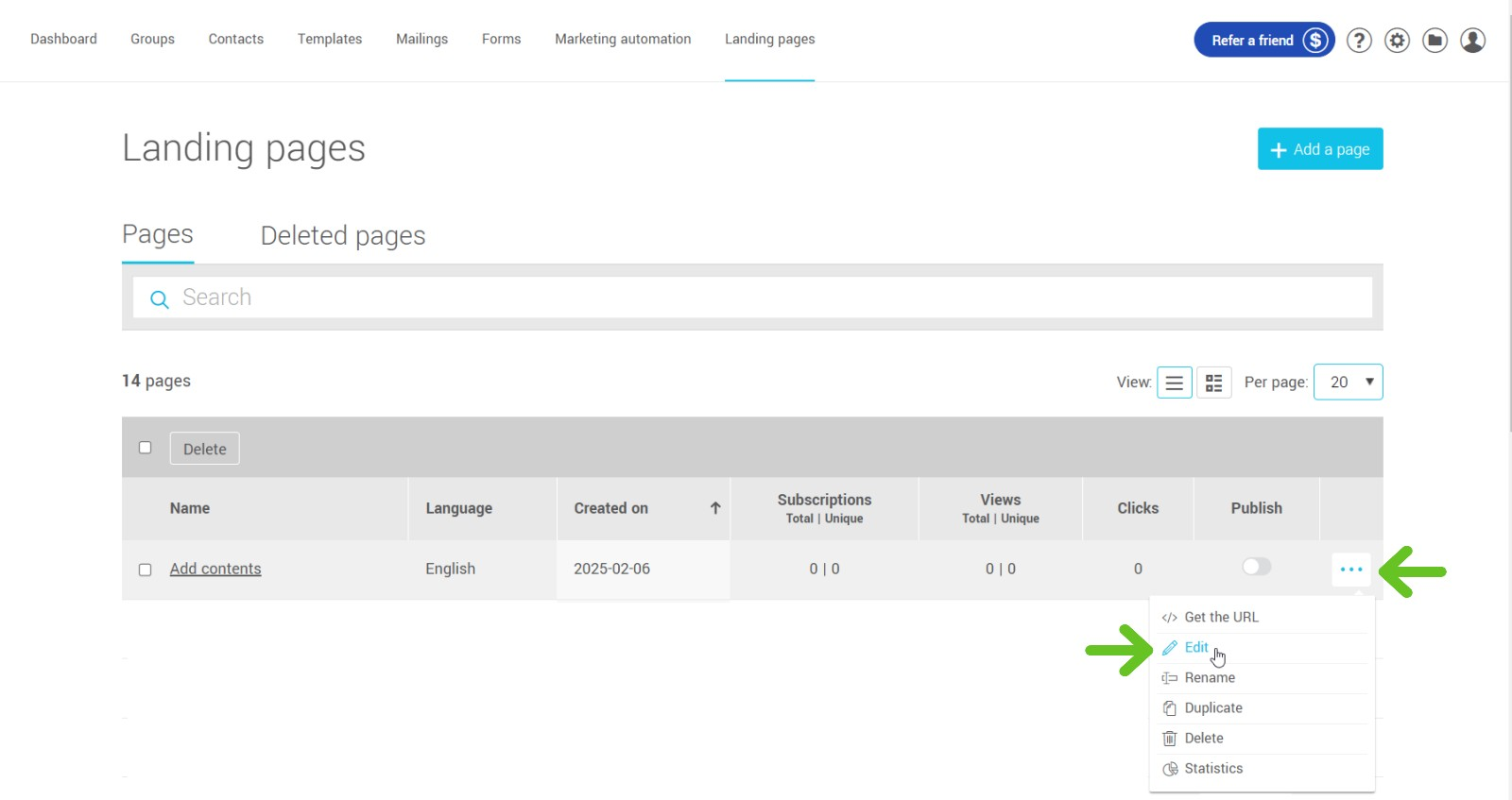
- Click on the desired page name or on the action menu (...) to the right of the page, then click Edit.
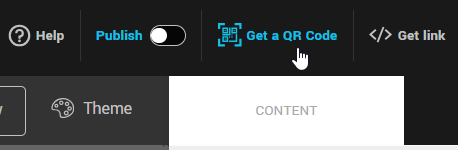
- Once you're in edit mode, click on Get QR Code at the top right of the editor.
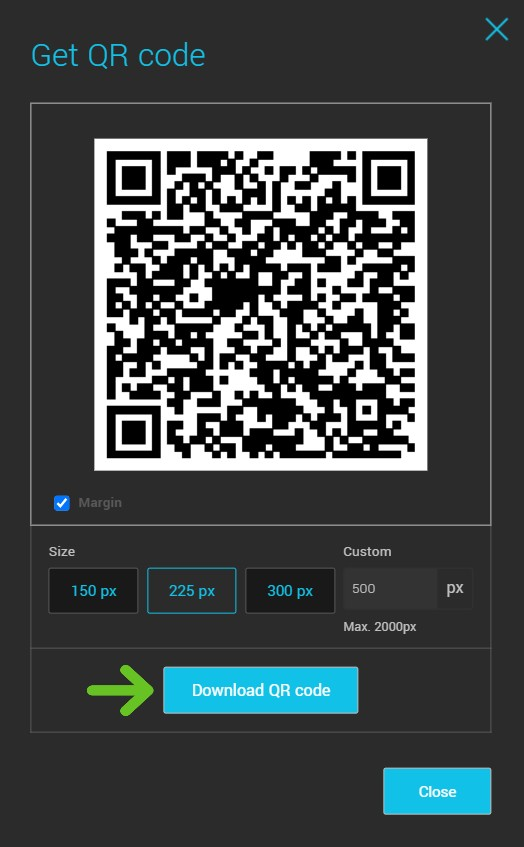
- Set the desired size. If necessary, disable the Margin option to generate a QR code without margins.
- Once the changes are applied, click Download QR Code to save the image to your device.
Where to use your QR code?
- Printed materials: Flyers, posters, brochures.
- Business cards: Add quick access to your information or content.
- Presentations and events: Display the QR code on a screen or kiosk.
Frequently asked questions
- Can I modify the QR code once it is generated? No, the QR code remains linked to the URL of the landing page. If you change the page URL, you will need to generate a new QR code.
- Does the QR code expire? No, as long as your landing page is active, the QR code will remain functional.
- How to integrate my QR code into a document or material? Once the QR code is downloaded, you can insert it as an image into any document, presentation, or design software.